Use powershell to run a command against all instances in a memcached cluster

We are in the process of deploying memcached in one of our applications to server as a flexible, lightweight distributed cache.  I’ve been familiar with the technology for years, but this was my first time to be able to directly play with it.

Memcached is written with the idea of do only one thing, and do it really really well.  Its mission in life is to be a robust, high scalable in memory cache.  When deployed in a distributed cluster, it completely ignores the problem inter-node communication.  In fact, the nodes in a memcached cluster are completely unaware of each other’s existence.  Instead, it pushes the problem down on the client, which is the only point that is actually aware of the existence of all the nodes.  If a node is down, the client can simply adjust its hashing algorithm to start looking for data on another node.

I’m the kind of person who loves to pop open the hood and see how things work.  Years ago, when my network admins were building out a pair of firewalls, I insisted on playing with the “heartbeat” cable.  I would unplug to simulate a failure, watch the firewalls failover, and then reconnect to see it failback.  I always smile and nod when people tell me about “automatic failover”, but I’ve been burned enough times that I always want to see it in action.

With memcached, naturally, I wanted to see how it handled failover as well.  I wanted to take a cluster of 12 servers, stick a value in the cache, and then shut that server down and see it pop up somewhere else the next time a server accessed it (and trigger its reload into the cache).

Unfortunately, this is a little harder than it sounds.  Memcached has a telnet interface that allows you to access a server and query information like server statistics, as well as view, add, and delete cache values.  However, since each server is standalone, you have no way of knowing where a particular value might be.  There are various memcached management tools out there, but they are more focused server status than querying the cache.

In the end, one of my team members write a simple powershell script that could take list of servers and a command and then execute the command on each server.  In other words, it functions like a broadcast tool that allows you to send a message to all the servers in a cluster and see the results.

This is a little trickier than you would expect, since telnet does not lend itself well to being scripted.  However, he found a blog post by an engineer in Australia about scripting an SMTP telnet session in powershell and adapted it to do something similar for a telnet session.

Here is the memcached script:

1
2
3
4
5
6
7
8
9
10
11
12
13
14
15
16
17
18
19
20
21
22
23
24
25
26
27
28
29
30
31
32
33
34
35
36
37
38
39
40
41
42
43
44
45
46
47
48
49
50
51
52
53
54
55
56
#
param(
[string] $command = $(throw "command is required. example .memdata.ps1 ""get SOMEKEYNAME""")
)

#
function readResponse($stream)
{
$encoding = new-object System.Text.AsciiEncoding
$buffer = new-object System.Byte[] 1024

while ($stream.DataAvailable)
{
$read = $stream.Read($buffer, 0, 1024)
Write-Output ($encoding.GetString($buffer, 0, $read))
}
}
#
function callport($remoteHost, $port = 11211)
{
try {
$socket = new-object System.Net.Sockets.TcpClient($remoteHost, $port)

if ($socket -eq $null) { return; }

$stream = $socket.GetStream()
$writer = new-object System.IO.StreamWriter($stream)

$writer.WriteLine($command)
$writer.Flush()

start-sleep -m 500

readResponse $stream

} catch [Exception] {
$ex = $_.Exception

Write-Output ("Error: {0}" -f $ex.Message)
}
}
# all servers in the cluster
$servers = @( "SERVER1", "SERVER2", "SERVER3")

$servers |% {
$remoteHost = [string]$_

Write-Output $remoteHost

# change value below to your memcached port if not the default of 11211
# and call callport as callport $remoteHost YourPortNumber
callport $remoteHost
}
# script end


To execute, you just run it with your desired telnet command in quotes:


.memcacheQuery.ps1 "get KEY1"

.memcacheQuery.ps1 "delete KEY1"  

.memcacheQuery.ps1 "stats"

Updated: one of my former colleagues pointed out some issues with the script and offered some corrections.  I’ve also migrated it over to github, since Posterous’s formatting was wreaking havoc with it.

Posted in Uncategorized | Tagged , , , | 2 Comments

When you rely too much on Google’s location aware searching

Google’s location aware searching is one of the features that really makes it a great search engine, but it would seem that I have become too used to it.  I just made a $10 mistake because I assumed that Google was returning results ranked based on geography.  

I remember my surprise when it was first implemented several years ago.  I would start typing some very generic search term, like “Children” and it automatically suggests terms including “Children’s Hospital Boston” and “Children’s Museum Boston”.  This is kind of amazing, given that there are children’s museums and hospitals all over the country.  Google is geolocating my IP address and then using its vast data on historical searches to figure out that people in my area are much more likely to be searching for those terms that “Children’s Museum San Francisco”.

Passover is coming up, and I just finished the book I was reading, so I started to search for a new book to read over the holiday.  My usual trick of buying ebooks and then printing a few chapters to read over the sabbath isn’t very practical for a longer holiday like Passover (four days of no electronics this year), so I decided to reverse it.  As some of my friends do, I started by picking a library book that I could read in hardcopy during the holiday and then purchase the ebook for reading the rest of the time.

As luck would have it, my sister-in-law works at a library in Newton, MA, so this is pretty easy for me.  I just needed to search their online catalog for a book I wanted that was available, and then she would be able to pick it up for me.  I googled “Newton public library”, went to the site, and started punching in titles.  I was in the mood for something light, like Game of Thrones, but each book I put in was checked out.  Finally, I put in Tinker Tailor Solider Spy, saw it was available, and asked her to get it for me.  

She wouldn’t be back at the library until the next day, but it was evening, the library was closed, and I figured it was unlikely anyone would check it out before she got to it.  In the meantime, I felt like reading right then, so I decided it was safe enough to purchase the title on my Kindle and get started.

To my surprise, my sister-in-law called me the next morning to tell me that in fact the book was checked out. Curious, I went back to the library’s site, and it was still listed as available.  Huh?

I started to look at the website more closely, and in the upper right corner of the home page in very small type, it said “Newton, Kansas”.  Oops.

I went back to the google search results page, and the next link below was another Newton library.  While it was not clear from the search results, this second result was for Newton, MA.

Library websites all look the same – amateur designs left over from the Web 1.0 days.  In fact, neither the Newton, MA nor the Newton, Kansas websites indicate where they are located beyond small address text on the home page, so if you don’t realize that there are two Newtons, it’s easy to get confused.

Why didn’t Google order the websites “properly”?  I’m guessing that most of the people who search for a library live in that town, so perhaps it didn’t have good geographic search data for surrounding towns.

On the other hand, when I just tried Bing, the Newton, MA library was the first hit.  I’m curious as to what would happen if I ran the search for a computer in Kansas.
Posted in Uncategorized | Tagged , , , | Leave a comment

Why I decided to buy a refurbished tv, and how a photo on my iphone saved me an extra $110

There is something kind of worrisome about buying a refurbished product.  You can saves some money, but the idea that the product was knowingly defective at some point imbues it with a feeling of imperfection.  I recently weighed these questions and opted to buy a refurbished HDTV (yes, I have joined the 21st century!) and thought it was worth sharing my rationale for the decision.

In order to understand why I went with a refurbished product, it’s important to understand why I was buying the TV in the first place.  For the past year and a half, I have been on a mission to cut television costs.  We have young kids and don’t watch very much television (around 4 hours or so a week), so I haven’t been able to justify the costs of upgrading our existing standard definition TV, which has been in good working order.  I even went so far as to cut our cable bill and use an HD TiVo to pull in over-the-air signals for free.

For the few shows we watch that aren’t available over the air (like The Closer), we just download them on iTunes, spending far less on the shows than we would on cable.  The process to do this has involved downloading them on my iPad and then hooking the iPad up to the TV, which worked well enough but required planning ahead each time.  I had often thought about getting an Apple TV for just $100 to make this much easier.  I knew that the Apple TV was incompatible with our standard TV, but I found a device on Amazon that was being used by many people to down-convert the HDMI signal for older televisions.  However, I had a sense that they were getting to release a new model, so I was waiting.

When Apple announced the new Apple TV a few weeks ago, I jumped on it and ordered it. I was then about to order the converter when I noticed one Amazon reviewer saying they hated it.  Curious, I clicked on it, and in the process I discovered that the converter squishes the image.  I had assumed it would just put black bars at the top and bottom of the screen, but apparently it squeezes the content so that it takes up the whole screen, making everyone look very thin.  This is exactly the sort of thing that would drive me bananas.

When I explained my conundrum to my wife, she had a simple solution – return the Apple TV.  However, I was in the midst of a sunk-cost fallacy; I was already committed to the $99 Apple TV, so all of a sudden, upgrading to an HD television started to seem like a reasonable idea.  I started to wonder just how cheaply I could get one for.

In my mind, an HD television around the size I would want some where in the mid-40 inches) would be over $1000, but apparently the introduction of 3D sets (which I have no interest in) has pushed prices down.  I discovered that I could easily get one for $700 and possibly even lower.  After some pleading and convincing, my wife agreed to consider it.

That Sunday, I wandered into Microcenter, an electronics store near my house, and saw a great deal – a 46″ Toshiba television with a 120 Hz refresh rate, 3 HDMI ports (one for the TiVo, one for the Apple TV, and one to grow on), all for just $500.  Why so cheap?  Because it was on sale… and it was refurbished.

Img_1966

I’ve purchased refurbished products a few other times in my life, and my experiences have been positive.  We got an iPod nano for my wife when she was pregnant so that she could listen to podcasts in the middle of the night when she was unable to sleep, and it has worked perfectly.  We also replaced my wife’s iPhone with a refurbished model when hers and she wasn’t yet eligible for an upgrade.  Both of those continue to work fine to this day.

Someone once described the benefits of a refurbished product this way to me: the product was broken and sent back to the manufacturer.  Most likely the device was discovered to be broken as soon as it came out of the box and immediately returned.  The manufacturer had to then give it a thorough investigation to figure out what was not working, fix it, and get it ready for sale.  It’s now been thoroughly tested and declared good.  In some ways, it is now in better shape than a new one that hasn’t been so thoroughly tested.  And for this, they will take 20% off the price.  

For me, this was prefect.  I was only getting the TV because I had been more or less forced into it, so I didn’t have the emotional barrier to getting one that had never been touched by anyone else.  I just wanted the best deal possible.

So I went home to discuss it with my wife.  She at first objected to the idea of getting a refurbished model on the theory that if I was going to buy a TV, just spend the money, but I convinced her the deal was worth it, so I returned later that afternoon to buy it.

And I came back to a surprise.  The TV that I had seen a few hours earlier for $500 was now selling for $610.  When I asked a sales clerk what had happened, he scrutinized the label and then explained that it had been on sale last week, and they must have not yet changed the price tag when I was in earlier.

As it happened, I had snapped a photo with my phone of the label when I was in earlier.  I tend to do this so that I can look up information about a possible product later and don’t have to wonder exactly which one it was.  I showed it to the clerk, who went off to discuss the issue with his manager.

After a few minutes he returned and told me they would honor the price from the morning.  Soon I had the television home and set it up.  So far, it has worked flawlessly.

Img_1968

And I have to say, despite not having seen a need for an HDTV television, it’s pretty nice!  For $500, it might even be worth it.
Posted in Uncategorized | Leave a comment

Performance: generate web traffic load using a powershell script

The other day, I found myself wanting a quick and dirty way to throw a controlled amount of load against a server for the purpose of tuning some thread settings.  What I wanted was to simulate varying numbers of concurrent requests to see at what point ASP.NET started to queue up connections (the “Requests in application queue” counter) instead of directly assigning them to a worker thread (the “Requests executing” counter). 

I felt a little bit like a MacGuyver, the television character famous for doing things like building a laser out of a flashlight and a magnifying glass.   In this environment, I did not have the luxury of downloading and installing one of the many load testing tools that were available, and I didn’t have a Cygwin console, which is my generally preferred scripting language.  I had to build my load generator out of the bits and pieces already available on the server. 

Time to break out powershell, the Microsoft scripting technology.  I’ve always known you could do fancy stuff with Powershell, but I’m more familiar with Cygwin and usually can use it as an alternative.  Since it wasn’t available here, I had to learn.

Powershell more or less allows you to access the .NET framework from a command-line or script, so I was able to use the HttpWebRequest object to open a connect to my server and request a specific page.  All I needed was a consistent request volume, so I didn’t really care about things like sessions or logins.  I chose a url to hit and then set up my script in a loop to hit it over and over and print out the time it took.


$url = "http://someserver/someapp/home.aspx"
while ($true) {
try {
[net.httpWebRequest]
$req = [net.webRequest]::create($url)
$req.method = "GET"
$req.ContentType = "application/x-www-form-urlencoded"
$req.TimeOut = 60000

$start = get-date
[net.httpWebResponse] $res = $req.getResponse()
$timetaken = ((get-date) - $start).TotalMilliseconds

Write-Output $res.Content
Write-Output ("{0} {1} {2}" -f (get-date), $res.StatusCode.value__, $timetaken)
$req = $null
$res.Close()
$res = $null
} catch [Exception] {
Write-Output ("{0} {1}" -f (get-date), $_.ToString())
}
$req = $null

# uncomment the line below and change the wait time to add a pause between requests
#Start-Sleep -Seconds 1
}

I opened up a powershell console and kicked off the script.  It immediately started generating the load, and I could start watching on my web server.  Now, this script is single threaded, so that means that it will just be sending one request after another, but without any real concurrency.  That’s okay – just start opening up more powershell windows.  I opened up around 20 powershell windows and all set them executing the script over and over.  Since the scripts all print their request time out to the screen, I could also watch the consoles and see how request time shifted up or down as I opened up more and more windows in addition watching the performance counters.

With this framework in place, I could precisely control the number of threads executing against the server and then observe how adjusting ASP.NET’s settings affected request queueing at various volumes.  Just what I needed.

Obviously, this is not a load testing tool.  There are many great products out there.  However, when I need something quick and dirty, this does the trick.

Posted in Uncategorized | Tagged , , , , , | 1 Comment

A microwave needs just one button, so don’t over-engineer your interface

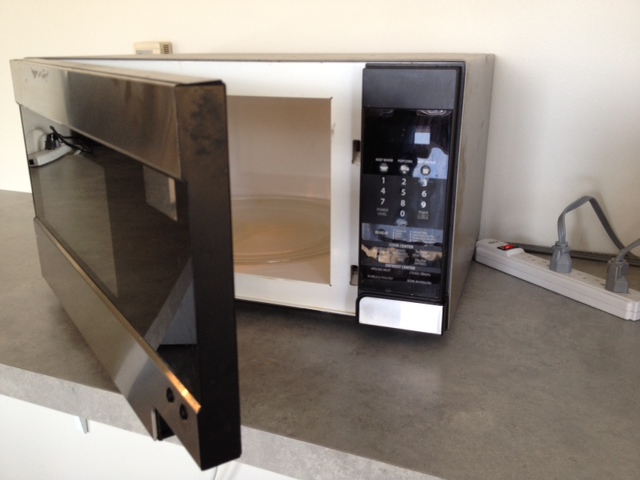
For several years, I was very puzzled by one of the microwaves in our office’s cafeteria.  It had just two buttons: “Start” and “Cancel”.

Image001

Each time I wanted to use it, I sat there baffled, wondering how I was supposed to tell it how long to heat my food for.  Opening the door revealed a more familiar set of controls that allowed you to enter how long to heat the food up for, but once you had programmed it, you still needed to close the door and press the start button on the outside.  There was plenty of room on the outside of the door to place the controls there, so why had they created this cumbersome hidden control setup?

Image002

After years of puzzlement, I finally pressed the “start” button one day, just to see what would happen.  To my amazement, the microwave sprang to life and automatically started counting down on the timer for one minute.  I pressed the button again, and the timer increased to two minutes.  Another press, and it was up to three.  The “Start” button was actually an “add a minute to the timer and start” button.

Somewhere along the line, someone clearly had a brilliant insight into how people use microwaves.  99.9% of the time, people were sticking in a food item and heating it up for 1, 2, or 3 minutes.  Sure, if they wanted to, they could set the timer for 2 minutes and 53 seconds, but the fact of the matter is that nobody ever does.

Sadly, this stroke of insight was completely undone by a horrendous labeling mistake.  Rather than calling it something useful, like “+1 minute”, it just says “Start”.  Every microwaves already has a “start” button that you press after entering the amount of time you want, so it leaves the users baffled about how they were supposed to operate it.

The interfaces of most microwaves look like they were designed by engineers.  As an engineer myself, I have a soft-spot in my heart for these folks.  However, I recognize that as engineers, we are trained to think about all kinds of complicated edge cases and advanced usage scenarios.  We tend to forget that most of their users are just trying to do something simple. 

In my mind, this is why the controls of microwaves feature dozens of buttons for complex use cases like power level settings, clock configurations, automatic heating systems, and other things that a small percentage of advanced users want to do.  Heck, my “fancy” GE Profile microwave at home has buttons for setting reminders and scheduling appointments.  I cringe to think about what focus group led to that being listed in the requirements specification.

I’m as guilty as the next engineer of overthinking an interface and adding too many damned buttons onto it.  But I recognize that this is why I’m part of the engineering team, not part of product management. 

If you ever want to know why interface design needs to be a separate job from software engineering, take a look at the microwave.

Posted in Uncategorized | Tagged , | Leave a comment

Traveling with three portable devices when one would be sufficient

My wife and I were sitting at the dining room table after the kids were in bed.  I was paying some bills on my laptop, and my wife was using the iPad (with a plug-in keyboard) to send emails.  In the course of our conversation, we realized we needed an old file that we had never migrated from our old Windows laptop to dropbox, so we proceeded to haul it out and boot it up.

As the machine was starting up, I realized that we now had 7 “portable” electronic devices for use by just two people:
  • One Macbook Pro
  • One iPad
  • One Kindle
  • Two iPhones
  • One cordless telephone
  • One Sony VAIO laptop

Img_9380

I found this sufficiently amusing that I needed to pull out an 8th device (a digital camera) to snap a picture of the other seven.

The funny thing about it is that there was a tremendous overlap:
  • Three could make phone calls
  • Four could read ebooks
  • Five could play videos
  • Five could send emails
  • Seven could surf the web

Yet somehow, each one of these devices was out because it served a specific need just a little bit better than any of the others.  Talking on the cordless handset is much more comfortable than using our cell phones (and doesn’t eat minutes), sending emails with a physical keyboard is more convenient than hunting and pecking on a virtual keyboard, and reading on a Kindle is easier on the eyes and less distracting.

This device specialization became particularly clear when I found myself bringing three devices on a day trip to Chicago when my iPhone alone would have been perfectly sufficient.  Since I was attending to a personal matter, I didn’t feel the need to bring my office laptop to do work, and I wasn’t staying overnight, so my baggage was minimal.  The only things I needed were the items that would make my trip more manageable.

Naturally, my iPhone was coming with me.  It’s my communications lifeline, and I was depending on it to keep in touch with home and meet up with the family members I would be seeing when I arrived.

The flight was a little under two hours each way, so I thought it would be nice to download a TV show or two to watch.  My iPhone was perfectly capable of downloading a playing videos, but it occurred to me that this might be a rare opportunity to use my iPad without trying to pry it out of the hands of my kids.  Its much larger screen would be a much better viewing experience, and at only 1.5 pounds, it was easy to bring along.

The other thing I wanted to do was read, and both my iPhone and iPad were perfectly suited to reading e-books.  In fact, the iPad was explicitly designed for reading books.  Yet, I still found myself wanting to bring my kindle instead.  The larger e-ink screen is much more comfortable to read than my phone, and its 6 ounce weight made it easier to hold in one hand than an iPad while waiting in line at security or sitting at the gate.  So the kindle came along as well.

For about 5 minutes, I considered bringing a fourth device as well – our GPS.  The trip was going to involve driving in some unfamiliar settings, and having GPS turn-by-turn directions was going to be essential.  We had one just sitting in our car’s glove compartment, but then I started thinking about the hassle… It would mean bringing extra cables to connect to the car’s power, and there would be the inevitable frustrating wait while it tried to search in vain for the satellite  signals it knew from Boston before finally giving up and trying to re-orient.  In the end, I decided to just pay the $40 for the TomTom GPS application for my phone and limit my devices to three.

In a few short weeks, I know that we will be adding to the plethora of devices when we purchase the hotly anticipated iPad 3.  Why?  Well… it will be much more convent for kids’  video calls with their grandparents than hauling out the laptop, and it will prevent the kids from fighting over the other iPad when we fly out to California in the summer.  And this will might mean I will be able to use one of my other devices (the Kindle) in peace.

Or least I hope so.  Maybe for 25-30 minutes.  If I’m lucky.
Posted in Uncategorized | Tagged , , , , , , | 1 Comment

How to transfer locations from TripIt and Yelp to TomTom for driving directions on an iPhone

I have a short day trip out to Chicago coming up, and as usual, I am depending on my iPhone for logistics.  I’ve been using TripIt for over a year to easily manage all of my flight information, reservations, and destinations (a fabulous application, even if you travel only rarely).  I also use Yelp‘s application to find nearby destinations like restaurants or museums.

Something new to my retinue is TomTom, a GPS application.  While I do have a standalone GPS that I normally bring along on trips, I always get frustrated at how long it takes before the GPS can finally figure out that I am no longer in the same state as where I left, leaving me stranded until it can locate itself well enough to start giving me directions.  The iPhone has a head start using cell towers, allowing an onboard GPS application can instantly locate you.  Plus it’s one less thing to carry (my wife is already laughing at me for bringing my iPhone, my iPad, and my Kindle for a day trip).

Unfortunately, these three great travel applications aren’t integrated on the iPhone.  TripIt and Yelp have all my destinations, but the only place I can go from there is to Google Maps, which lacks a true GPS.  Really what I want to do is transfer these locations straight over to TomTom for turn-by-turn directions, but there is no clear way to do it.  TripIt lacks a copy/paste option for addresses, and while Yelp allows you to copy the address, you can’t just paste it into TomTom – the GPS application wants you to put in a city/state first and then select a street afterwards.  All in all, very cumbersome.

After a little experimenting, I have found an easy way to transfer locations from TripIt and Yelp (and really any application that links to Google Maps) over to TomTom without too much fuss.  Google Maps allows you to save any location to a contact, and TomTom allows you to navigate to a contact’s location, so you can use the address book as a type of intermediary.

Here is how to do it for TripIt.

First, pull up your destination and then switch to Google Maps view:

Img_1890

Once you are in Google Maps, you need a pin for the location.  Some applications like Yelp will give you a pin automatically, but if they don’t, you can drop one:

Img_1891

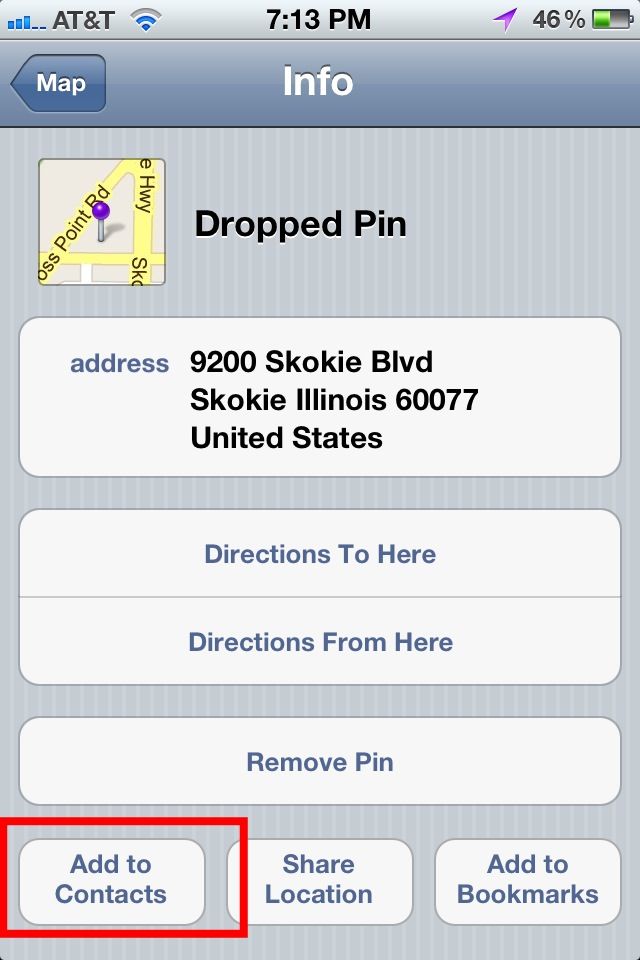
Once you have a pin, tap on it for more details.  Here you will find an option to save it to a contact:

Img_1892

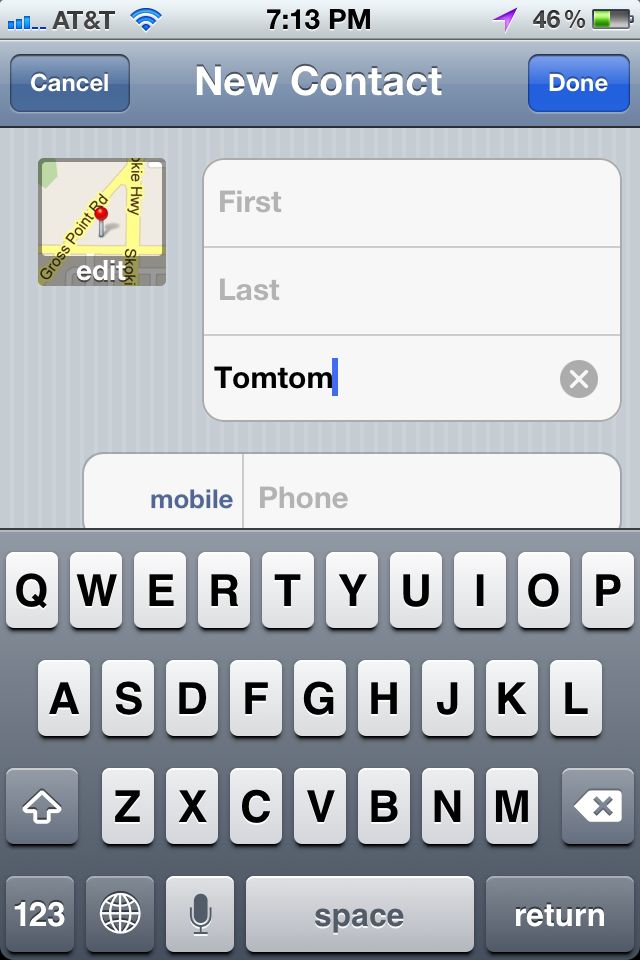
Create a new contact, and give it a name.  Since it’s not a contact you want to save for a long time, I choose to give it the temporary name of “TomTom”:

Img_1887

Once the contact is created, you can switch over to TomTom and choose the search by contact option:

Img_1888

From here, choose the “TomTom” contact, and your turn-by-turn directions will begin automatically.

Granted, it’s a little roundabout, but certainly beats having to write the address down on a piece of paper and then manually retype it into the application.

Since the technique is based on functionality in the built in Google Maps application, this should work with most other applications that show you locations as well.
Posted in Uncategorized | Tagged , , | Leave a comment

The best thing about my Kindle is my kids have no interest in it

As the kids have moved into toddler age and beyond, I find myself with more opportunities to read here and there.  I can work through a New York Times article in between mopping up my 1.5 year old son’s spilled cereal bowl, and I can even read a few pages of a novel while I sit with my four-year-old daughter while she is in the bath.  Since these reading opportunities are still unpredictable, most of this reading takes place electronically on my iPhone or iPad.

Unfortunately, this creates a bit of a self-destructive cycle.  While the iPhone and iPad are great for scanning through New York Times articles or reading my book, they are like addictive magnets for the kids.  If my son catches me using the iPad in his presence, he immediately drops whatever he is doing and starts grabbing for the device (after giving it to him a few times and him getting upset, I finally discovered that he didn’t want to actually use any apps – he just wants to scroll the home page screens of icons back and forth endlessly).  My daughter will start asking to watch a video, and before you know it, their previously independent play has stopped, and I have lost my chance to read.

A few weeks ago, as I was furtively reading The Girl with the Dragon Tattoo in a corner, it occurred to me that perhaps a Kindle would be the solution to my problems.  It’s a highly regarded ebook reader, and the kindle app is compatible on my iPhone and iPad, meaning that I could move between the Kindle and the iOS devices seamlessly.  It also has an experimental web browser would would allow me to scan New York Times articles.

But most importantly, a Kindle is otherwise completely boring.

No touch screen.  No color.  No sounds.  No “swish” of the inertial scrolling.  It doesn’t do much of anything other than display text.  Just a plain unremarkable gray slab.  It would allow me read the material I wanted, but it might avoid the “drug addiction” effect that the Apple devices have on my children.

I picked up the introductory ad-supported Kindle is only $79 after the kids were in bed last week and set it up.  It connected to my wifi network (although there seem to be some intermittent issues due to Kindle connectivity problems with Apple’s Airport Express), and I verified that I was able to use the mobile version of the New York Times website.  I also loaded a book, confirmed it worked, and decided it was worth a gamble.

The next morning when the kids got up, it was time for the all-important test.  I sat down next to my son as he started eating his cereal and started reading the times on my Kindle.  He soon spotted that I had something new and reached out for it, so I handed it to him.  He turned it over a few times, made a few excited grunts, and then started pushing a few of the buttons at the bottom.  Not much happened.  After a minute or two of this, I asked for it back, and he gave it to me.  He then resumed eating his cereal and let me read in relative peace.

Img_1861

Success!  My daughter had a similar reaction, and I have had quite the reading-filled weekend.  I’ve made it through many of the top stories in the New York Times, and I read about a quarter of a scifi novel that I had been interested in.

As a web browser, the Kindle is just functional enough.  While The New York Times charges separately for a true Kindle subscription, they don’t block the Kindle web browser from visiting their mobile site (mobile.nytimes.com).  I am able to log in with my print subscriber account for full access, and the articles present quite nicely.  I’m able to browser the top stories, look through the “Most E-Mailed” list, and scan the paper sections.

Img_1864

Granted, it’s a far cry from browsing the times on the iPad.  You don’t get the “first paragraph” introductions to articles and color photos that are often key to hooking you into an article, and there is none of the effortless “swiping” through the different sections.

But on the other hand, my kids actually let me read it this way.  In the land of the blind, the one eyed man is king.
Posted in Uncategorized | Tagged , , , , , | 1 Comment

Until there is iPhone screen sharing, using PhotoPen to mark up screen shots for family tech support

As the family nerd, I am the go-to source for computer tech support.  As an iPhone devotee, it also means that I am the person who gets the call when someone’s phone isn’t working (one family member opted to go with an iPhone in part because I explained that if they bought an Android device, I wouldn’t be able to help them if they ran into any issues).

When I am providing support for a regular computer, I’ve come to rely on join.me for easy desktop sharing.  However, there is nothing like that for the iPhone.  The person with the problem is struggling to explain to me over the phone what is wrong, and I am trying to talk them through the steps fix it – frustrating for both of us!  I do have fantasies that someday Apple will roll out an extension to FaceTime video calls that allows for the other person’s screen to be a kind of third camera, allowing the person on the other end to see what’s on the caller’s screen.  Alas, this feature doesn’t yet exist.

Recently, I hit on a new technique for providing remote phone tech support.  My mother was using Instacast based on my recommendation, but she couldn’t figure out how to disable the 3G streaming options.  I provided her with what I thought were clear steps:
You have to go into the application’s settings (look for the gear icon, or you might have to go into the general iphone settings and find the “instacast” section, depending on how recent your version is).  There is a section called “Celluar Data (3G)”, and under there is an option called “Streaming Allowed”, which you can change to off.

However, she couldn’t figure it out from those steps.  While Instacast is a great program, it lacks the simple intuitiveness of Apple’s own applications.  My instructions notwithstanding, she just couldn’t figure out how to find the setting.

What I really wanted was a way to “show her” what to do.  After a quick search of some apps, I found a really useful application called PhotoPen.  It allows you to make simple annotations on a photo, including boxes, circles, text, and other simple markup.  I used the sleep+home button combination to take screenshots of the relevant screens in Instacast:

Img_1798

I then used PhotoPen to add some simple annotations to indicate exactly where she should be tapping to get into the settings:

Img_1799

I then marked up the other steps of how to get the final setting:

Img_1741

Img_1742

I then packaged these up into an email and sent them off to her, and voila, she was able to do it.

What I really like about this is that I can do it all from the phone, quickly and easily.  Before, if I had wanted to do something like this, I would have needed to take the snapshots, transfer them to a computer, open them up in a photo editor, mark them up, and send them along.  Now, I can do it all on my device in a few minutes.

Of course, this only covers half the problem.  If my “client” isn’t able to describe what problem they are having or they are experiencing an issue I’ve never encountered, I still need a way to see their screen.  But this is a good start.

So, Apple, how about including my “third camera” FactTime feature in iOS 6?
Posted in Uncategorized | Tagged , , | Leave a comment

Solved: Invoke a cygwin script from an asp.net web application and stream the output to the browser in real time

For back-end system monitoring like log analysis, I frequently use cygwin scripts to process data.  These tools are often useful for diagnosing issues or checking whether a problem could be specific to one server in a pool.  I’ve wanted to train more of my colleagues on using these scripts to do the same type of analysis, but it requires logging in to a server via RDP and knowing how to execute Cygwin scripts and interpret their output.

It occurred to me that if I just wrote an ASP.NET page that would execute the Cygwin process and parse the output (or output files), I could expose the scripts to the larger audience without the need for so much training or system access.  Since I had already worked out how to invoke a Cygwin script from a .bat file, I figured this should be easy, right?

Well, not so much, actually.  As it turns out, it is pretty difficult to invoke a .bat file from an ASP.NET application and be able to gather standard input/output/error logs.  I won’t go into the details here, but google on this a bit and you will see what I mean.  After a bunch of experimentation, I finally figured out the right set of parameters to kick of a Cygwin shell script by invoking bash.exe directly.


Process p = new Process();
 
string cygwinDir = @"c:cygwinbin";
string cygwinScript = @"/cygdrive/g/foo.sh"
p.StartInfo.FileName = cygwinDir + "bash.exe";
p.StartInfo.Arguments = "--login -c "" + cygwinScript + """;
p.StartInfo.WorkingDirectory = cygwinDir;
p.StartInfo.UseShellExecute = false;
p.StartInfo.RedirectStandardOutput = true;
p.StartInfo.RedirectStandardError = true;
p.StartInfo.EnvironmentVariables["HOME"] = "C:";  // may not be necessary, depending on environment

The key things here are to invoke the “bash.exe” command directly, with the working directory in the Cygwin folder.  You then pass it the “–login” argument to initialize the environment and the path (in Cygwin directory style) to the script you want to execute.  The very last command creates an environment variable to specify where the HOME directory should be.  Before I added it, cygwin kept giving me messages about copying skeleton files (i.e. .bashsrc, etc)  and then having errors trying to access a non-accessible drive.  By setting the HOME variable, I was able to give it a place to find/copy these files, but you might not need it.

Okay, so far, so good… I am able to invoke the script.  But what about the output?

Some of my scripts can take a long time to run (10 or 15 minutes!) as they read and process data files in other locations, so I wanted to make sure that I was giving the user the feedback of seeing the scripts output as it executes.  This meant that as it generated standard output and standard error data, I wanted to grab it, write it out to the html response, and flush the buffer so that it showed up in the browser in real time.  I also wanted to make sure that the standard output and standard error data was displaying in the correct order, so that if there were any script issues, it was clear what errors were occurring and at what point.

This turned out to be much trickier.  Initially I was fumbling around with trying to process the standard output and standard error streams directly, but they kept showing up in the incorrect order.  Fortunately, one of my colleagues had faced a similar issue in a difference scenario and provided me with the solution.  It’s possible to set up an event handler function whenever some standard output or standard error data is generated, and these can then write the data to the response and flush.  I also used some simple CSS to color the standard error data red.

This way, as the script progresses, the output will appear in the user’s browser in real time, giving them a sense of progress and the opportunity to see errors.  Here’s the code:

 
    protected void Page_Load(object sender, EventArgs e)
    {
        Response.ContentType = "text/html";
        Response.Clear();
        Response.BufferOutput = true;
        Response.Write("<html><head><style>.stderr { color: red; }</style></head><body>Script Execution Beginning...<hr/><br/>");
        Response.Flush();
 
        // Insert code from the previous sample here to set up the Cygwin process invocation
        // ...
 
        p.OutputDataReceived += new DataReceivedEventHandler(OutputDataReceived);
        p.ErrorDataReceived += new DataReceivedEventHandler(ErrorDataReceived);
 
        p.Start();
 
        p.BeginErrorReadLine();
        p.BeginOutputReadLine();
 
        p.Refresh();
 
        p.WaitForExit();
        Response.Write("<hr/>Script Execution Complete</body></html>");
        Response.End();
    }
 
    //-------------------------------------------------------------------------------------------------
    void ErrorDataReceived(object sender, DataReceivedEventArgs e)
    {
        if (e != null && e.Data != null)
            WriteLogData(e.Data, true);
    }
    //-------------------------------------------------------------------------------------------------
    void OutputDataReceived(object sender, DataReceivedEventArgs e)
    {
        if (e != null && e.Data != null)
            WriteLogData(e.Data, false);
    }
 
    void WriteLogData(string data, bool isError)
    {
        Response.Write(string.Format("<div class="{0}">{1}</div>n",
            (isError) ? "stderr" : "stdout", HttpUtility.HtmlEncode(data)));
        Response.Flush();
    }

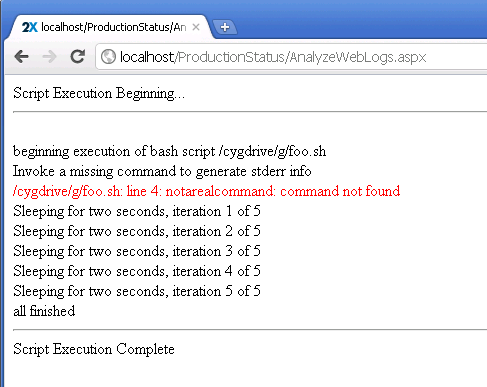
To test the code, I created a simple shell script that iterates five times, writing a message out and then sleeping for two seconds between each iteration.  If the script is working, I should see the page start to render the script output but pause every two seconds as each line is written out and then appears in the web browser.  I also intentionally put an error into the script so that it would write some data to standard error, and I could verify that it appeared at the right place and that my syntax highlighting worked.

Here is the script:


#!/bin/sh
echo "beginning execution of bash script $0"
echo "Invoke a missing command to generate stderr info"
notarealcommand
 
for i in {1..5}
do
   echo "Sleeping for two seconds, iteration $i  of 5"
   sleep 2
done
echo "all finished"

And it worked like a charm.  I invoked the page, and I saw the error appear, and then a new line of output would appear every two seconds, just like I would see if I were invoking the script directly in a command shell:

Image001

And when it was complete:

Image002

Posted in Uncategorized | Tagged , , | 3 Comments