Home Science Experiment: Improvised digital microscope for kids using an iPhone and Apple TV

Last week, I came across an interesting post about how DIY enthusiasts could remove a lens from a laser pointer and use it to create a simple microscope using an iPhone. I like doing experiments with my kids and teaching them about science, and this seemed like a great way to make microbiology accessible to kids. Taking turns looking down a microscope lens is too challenging for young kids, but having a screen that we could look at together and point out interesting features would be much more accessible.

The deconstructed laser pointer was a bit more DIY than I was quite prepared for, but I realized if just placing a lens in front of the iPhone’s camera works, you could just as easily stick a camera up to an existing microscope.  My plan was to use an iPad so that there would be a larger viewing screen.

On Amazon, I ordered a $35 kids’ microscope and a set of 25 prepared slides for another $15.  A few days later, I had the microscope and was ready to try it out.
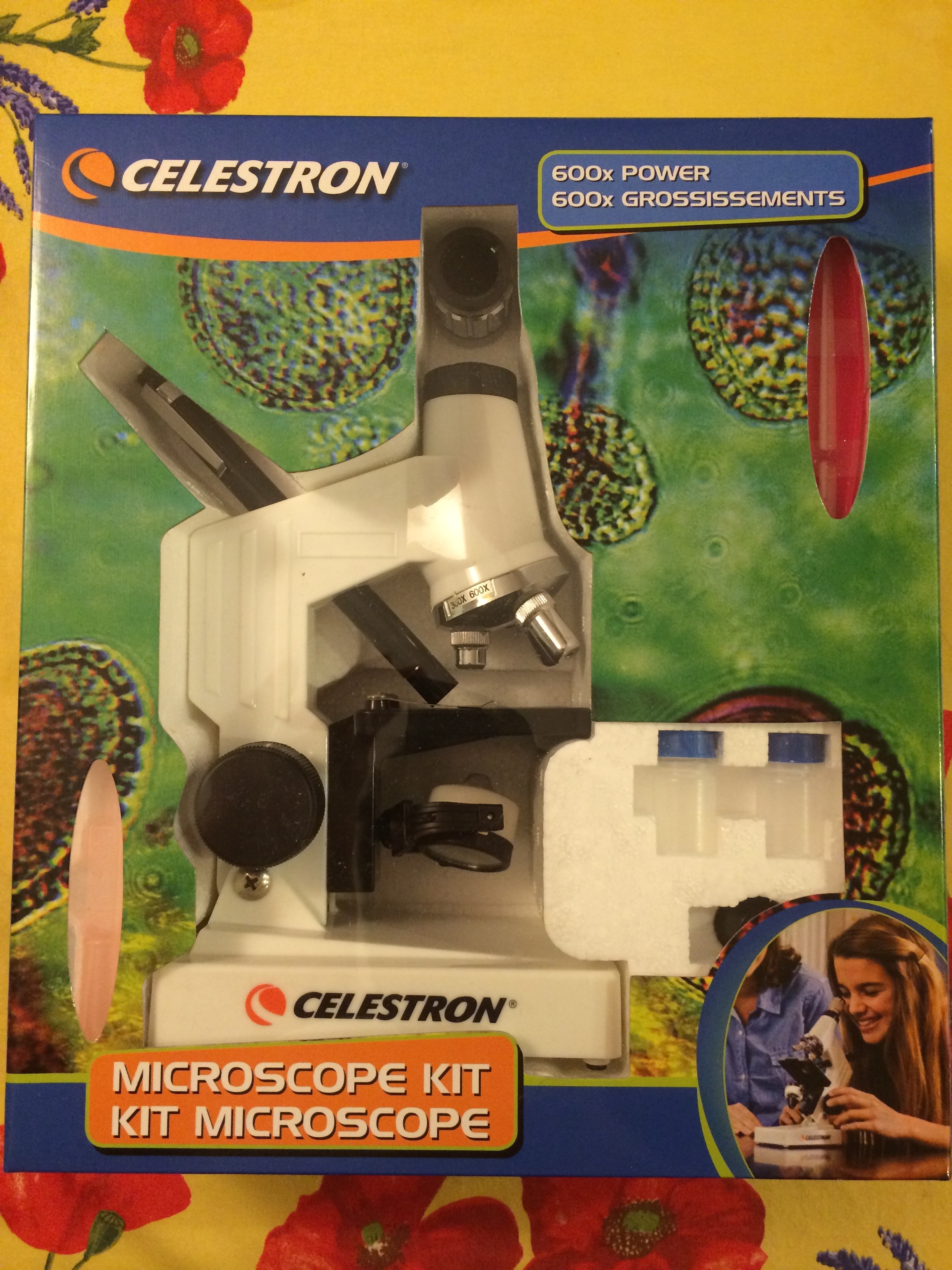
Kids' microscopes can be found cheaply on Amazon, like this one from Celestron, discounted to just $35

Kids’ microscopes can be found cheaply on Amazon, like this one from Celestron, discounted to just $35

It’s not exactly a high quality piece of lab equipment, but I was able to set it up quickly. I placed an iPad up to the lense, and with a bit of fuss was able to get it to capture the image. However, I found it to be quite touchy and the faintest bit of wobbling would cause it to lose the image.

Then, I tried my iPhone 5S, which had significantly better results. It focused and adjusted the light levels almost instantly, making it much more useful than the iPad. Clearly, the quality of the camera is much more than just the difference in mega-pixels (8 for the iPhone, 5 for the iPad).
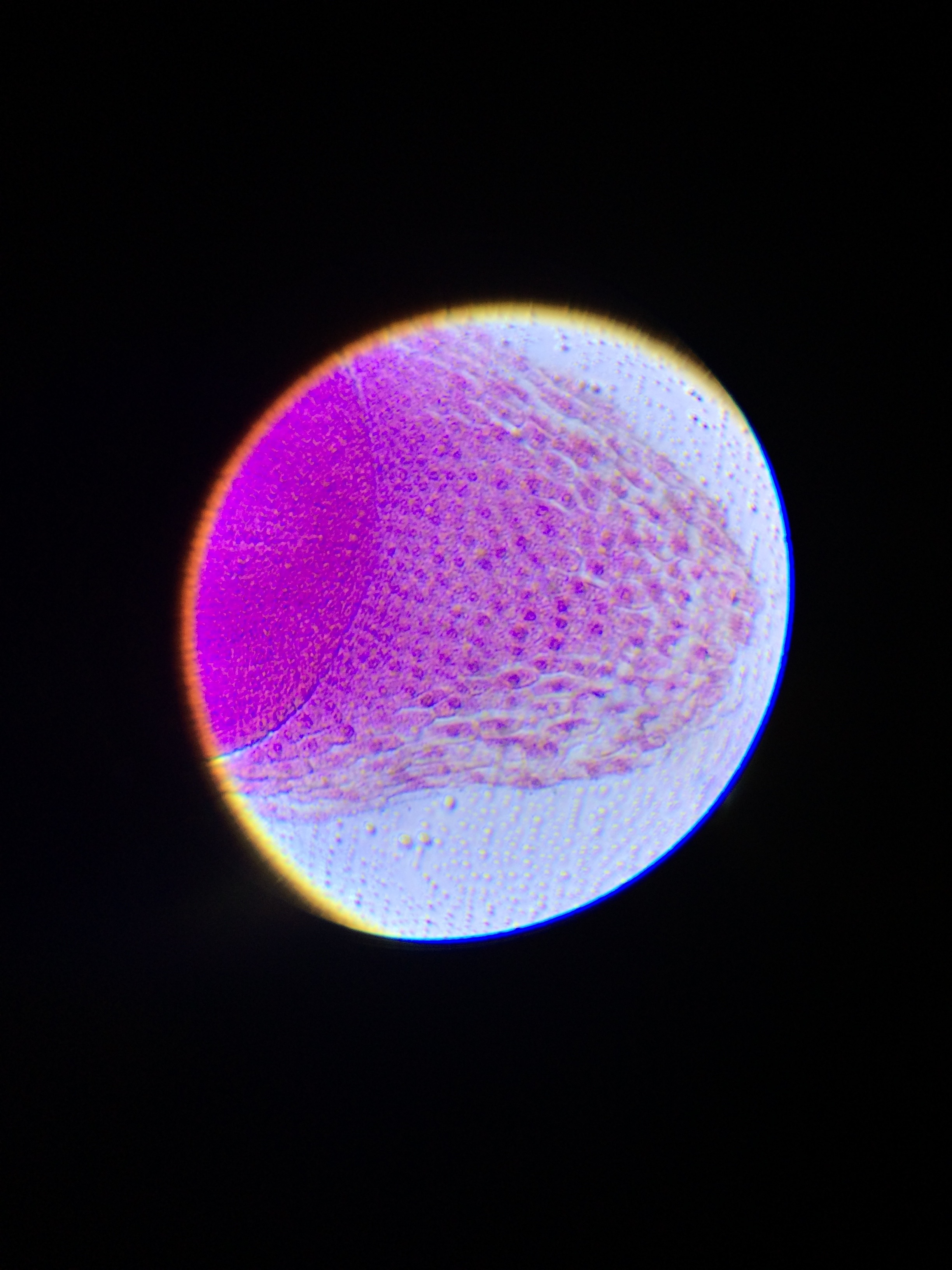
By placing the iPhone up to the microscope lens, you could clearly see the dividing cells in a corn root

By placing the iPhone up to the microscope lens, you could clearly see the dividing cells in a corn root

The effect was really quite amazing.  You could see individual structures, like the dividing cells from a corn root above.

The phone could get easily knocked off angle, so I improved a simple stand to rest the iPhone just a faction of an inch above the microscope.
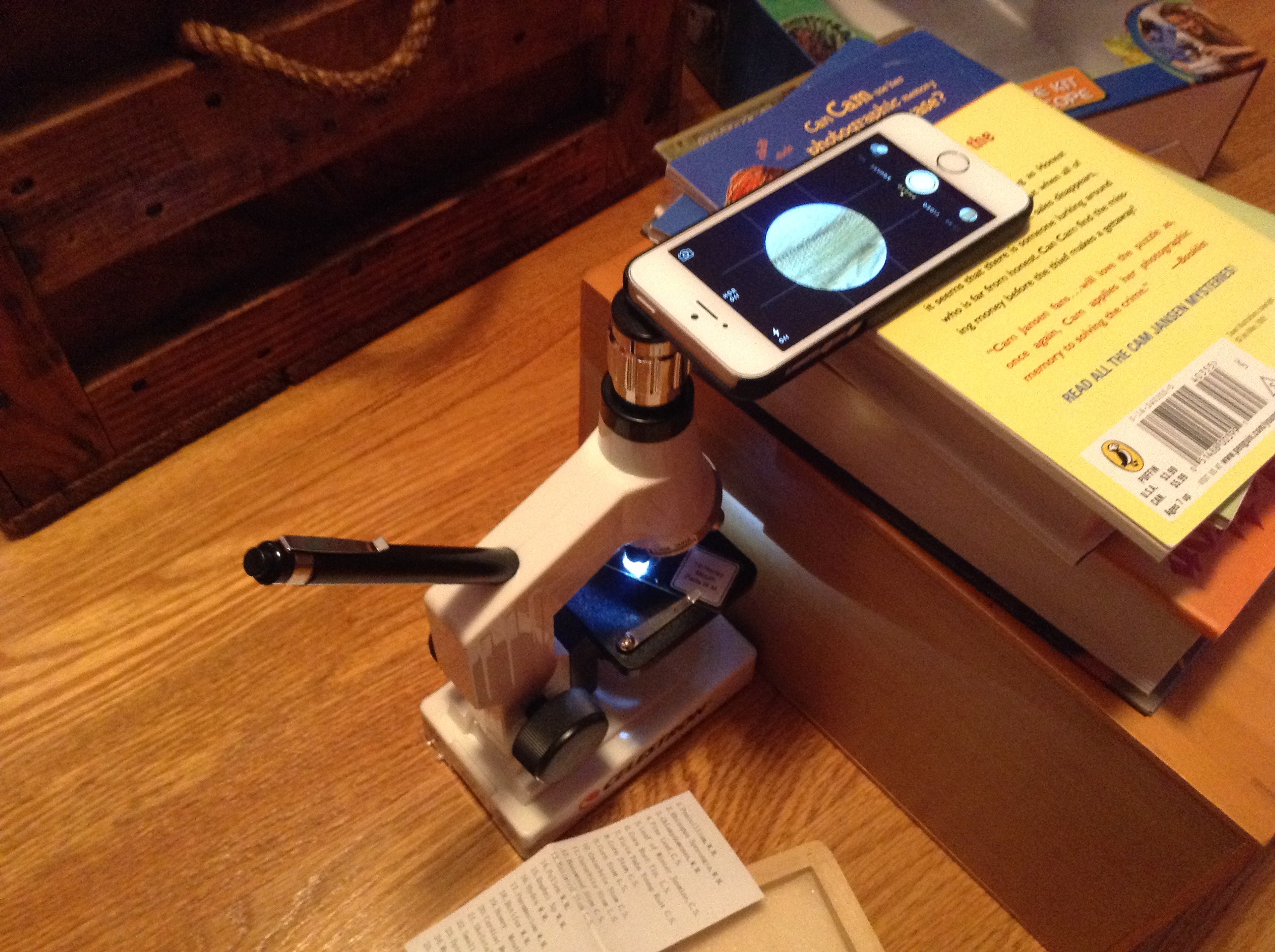
A simple stand held the iPhone just a fraction of an inch above the microscope to avoid getting jostled

A simple stand held the iPhone just a fraction of an inch above the microscope to avoid getting jostled

My only problem now is that the image was still much smaller than I wanted to be able to interact with the kids. Then I had an inspiration – mirror with the Apple TV!

I have used the Apple TV for life-sized skyping, so I tried the same trick to broadcast what was on the phone’s screen to the HDTV.
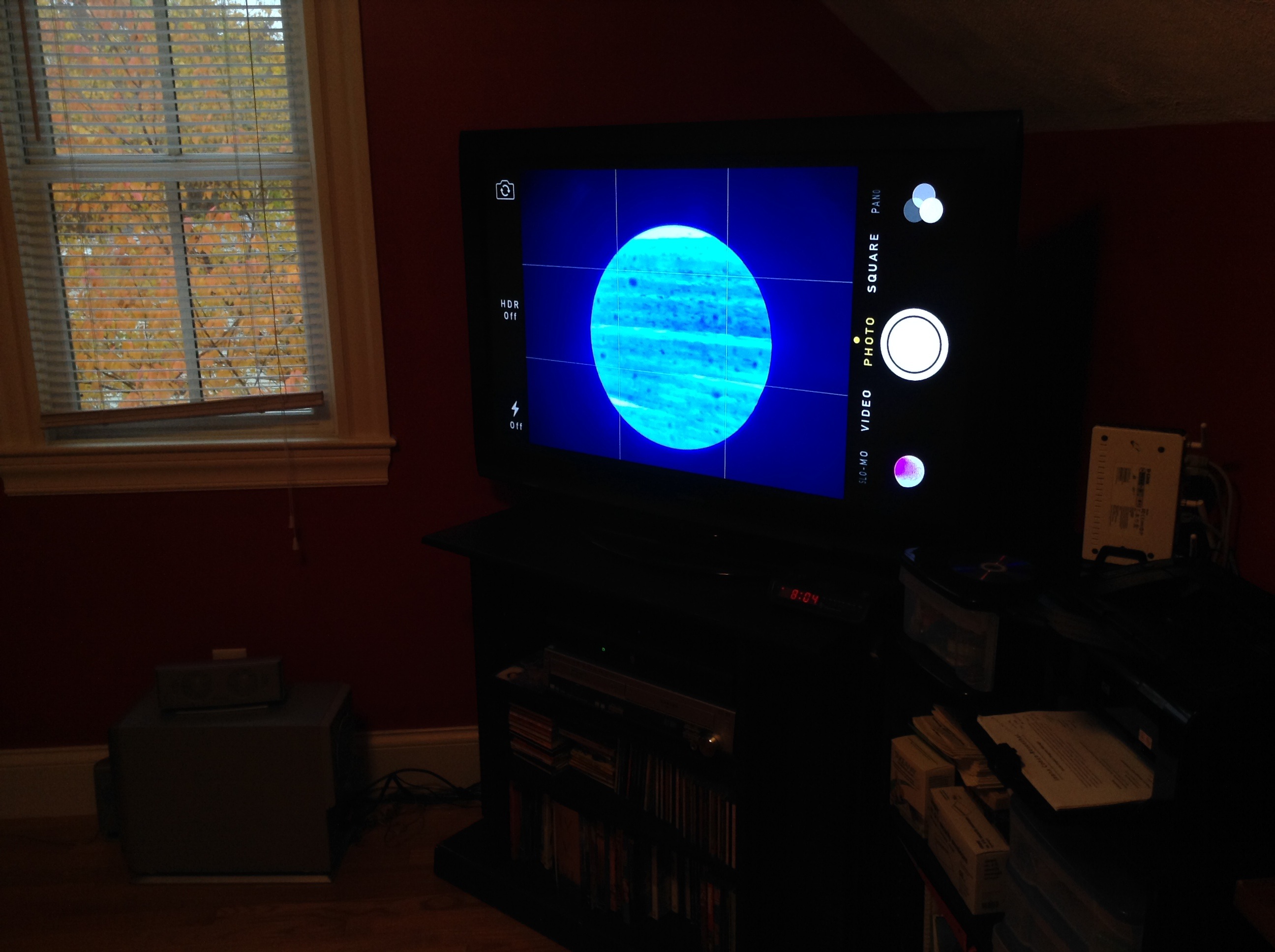
By mirroring the iPhone to the Apple TV, the microscope image became huge

By mirroring the iPhone to the Apple TV, the microscope image became huge

Now, I had a life-sized digital microscope screen that the kids and I could really look at together.

Biology isn’t quite my field (I’ve always been  more interested in physics), but my father is a biology professor at the Rochester Institute of Technology. Using Facetime, I was able to show him what I was seeing in the microscope, and he taught me some of the basics about what I was looking at.  I was ready.

The kids were up extra early today since it was daylight savings time, so I figured this would be a great morning activity. I didn’t really expect my 3-year-old son to get it, but my 5-year-old daughter is quite interested in things like this (she is particularly fascinated by human evolution and often asks to talk about “the early humans”), so I thought she might be really into it.
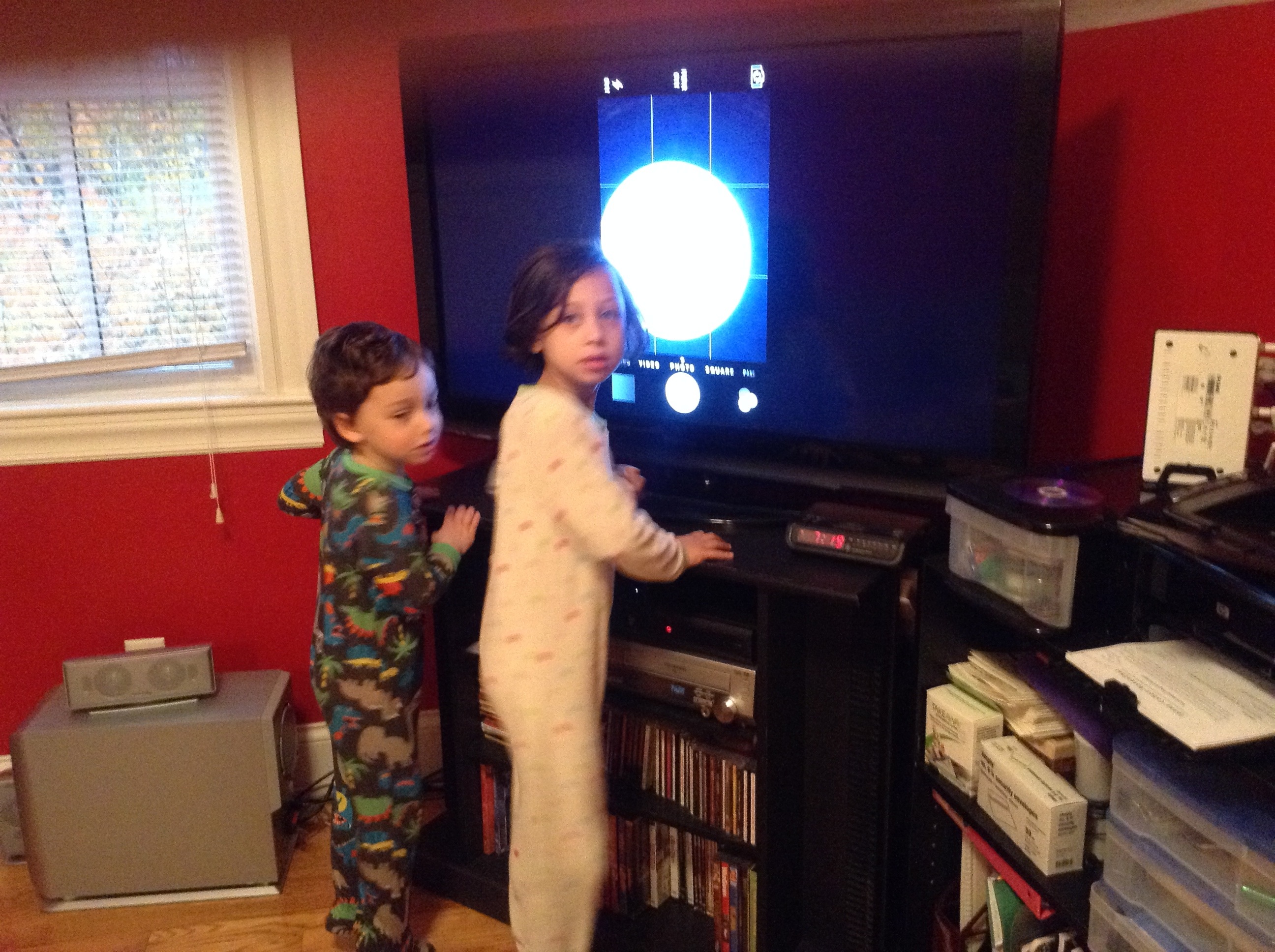
The kids weren't quite as taken with it as I was

The kids weren’t quite as taken with it as I was

Sadly, no luck. We looked at some red blood cells and some tree roots, and my daughter simply rolled her eyes and said, “This is boring!”

I continued to play around with the microscope that morning on my own, dragging my daughter at one point to look at some amazing close-ups of a bee proboscis that showed the individual hairs.
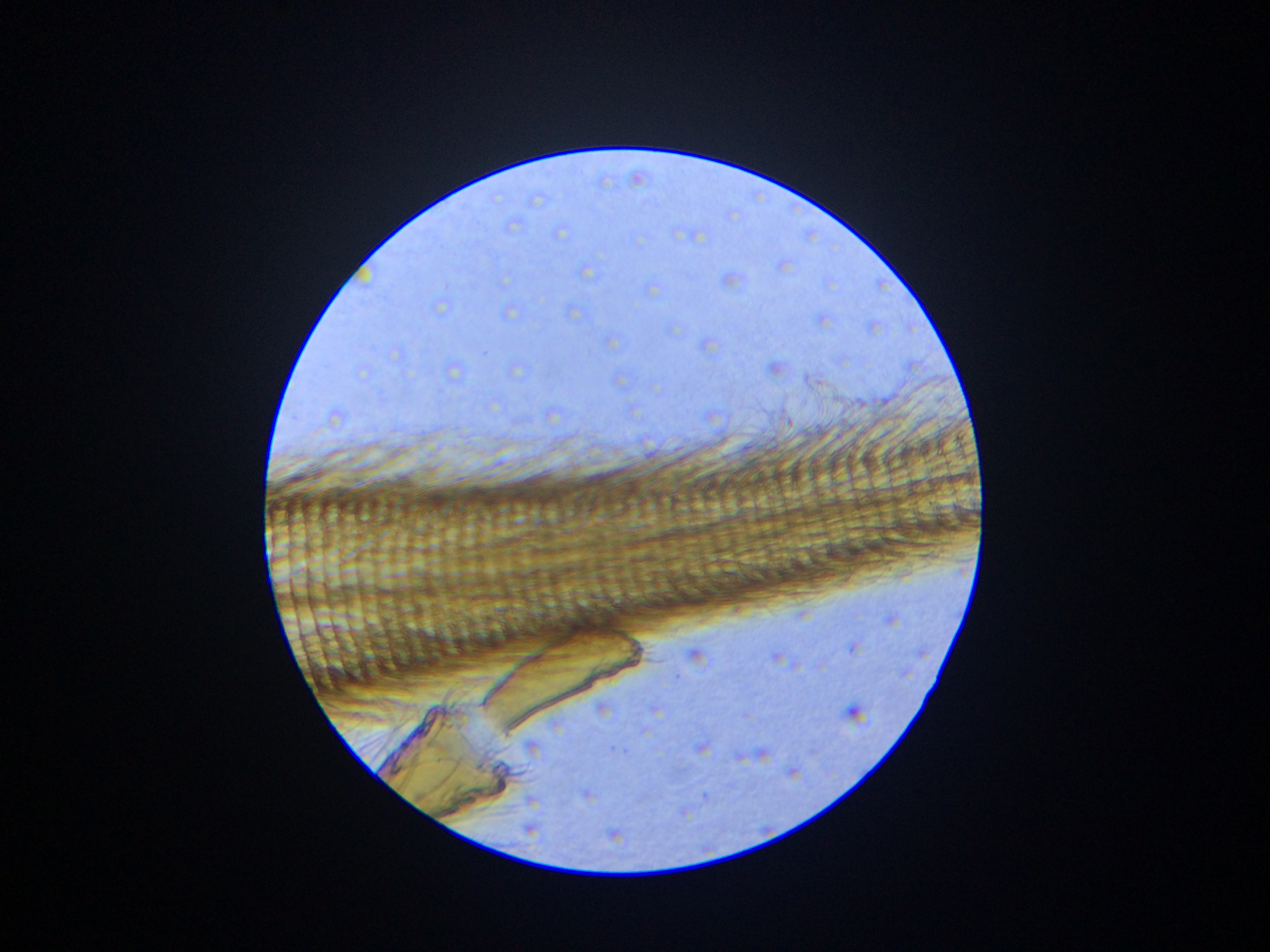
The proboscis of a honey bee

The proboscis of a honey bee


At high magnification, you can see the individual hairs

At high magnification, you can see the individual hairs

She was unimpressed.

Oh well. I thought it was cool.

Maybe when she’s six or seven.

Posted in Uncategorized | Tagged , , , , , , | 1 Comment

Solved: Editing a CSV with UTF-8 encoding on a Mac

Much to my surprise, Mac’s are horribly deficient at editing a CSV file that has UTF-8 characters in it.

Someone sent me a CSV file, and I needed to make some edits to one of the columns that included adding a bunch of characters with diacritics (ä or ú). I assumed this would be easy, since back in the Windows world I had edited lots of CSV files using Windows Excel.

I naively assumed I would be able to do the same on Microsoft Excel for Mac.  As it turns out, you can’t even get off the ground this way.  At least in version 2011, Microsoft Excel for Mac cannot open a CSV file with UTF-8 characters. The file will open, but any non-ascii characters will have been totally butchered.  To make matters worse, if you put UTF-8 characters into an excel file and try to save it as CSV, it will generate garbage.  It just won’t write the proper UTF-8 encoding into the file.

I was initially convinced that there had to be an option somewhere, but there isn’t. UTF-8 in a CSV file is just not supported in Excel on a Mac.

I found some sources that indicated that Numbers for Mac would solve this, so I spent the $20 to download it from the Mac App Store. Well, I found good news and bad news. The good news is that Numbers handles the UTF-8 encoding just fine. The bad news is that their implementation of reading CSV files in Numbers is buggy.

CSV files use commas to separate the columns. This works great until you have a cell that needs to have a comma inside the cell value. In order to prevent the program processing the file from interpreting the comma as a delimiter, you wrap the value in double quotes (“) so that the comma is treated as part of the value.  Okay, so what do you do then if you need to have a double-quote in the text? You place two double-quotes (“”) one after the other, and this will be treated as a single double-quote in the text.

Unfortunately, Numbers seems to have some bugs in this when you mix the two together.  You take a very simple CSV file with two rows and two columns, like this one:

Column1,Column2
value1,”I say that “”numbers””, however, sees many cells”

And Numbers will interpret it as:

The CSV processor on Numbers is very buggy

The CSV processor on Numbers is very buggy

Not very helpful. The escaped double-quotes are interfering with the processing, causing the internal commas to be mis-interpreted as delimiters.

I started looking around for other editors.  I briefly looked at a CSV editor called XTabulator, but found that its editing powers were really quite limited. Most critically, it had no ability to do a find and replace, and it could not copy or paste columns from other programs like Excel.

Eventually, I took a look at LibreOffice.  The spreadsheet tool can correctly read files in UTF-8, and it has all of the search and replace functions I need.  It appears to be modeled on the Windows version of Microsoft Excel.

I did run into a small hitch when trying to save the file, however. It handled the UTF-8 encoding without a problem at all, but for some reason it saved it in tab-delimited format instead of CSV. However, when I checked the “Edit Filter Settings” button at the bottom of the “Save As…” dialog, it gave me options for the encoding, field delimiter, and text delimiter:

Using the "Edit filter settings" option brings up an extra dialog to specify the proper CSV formatting in LibreOffice

Using the “Edit filter settings” option brings up an extra dialog to specify the proper CSV formatting in LibreOffice

I left the options on their default settings, and that did the trick.

Who knew editing a UTF-8 CSV file on a Mac would be such a pain? Thanks, LibreOffice!

Posted in Uncategorized | Tagged , , , , | 24 Comments

Shortcut: convert pre-paid credit cards to Amazon gift certificates for easy spending

Pre-paid credit cards sound good, but they are really quite a hassle. These are often given as a gift or a reward that comes in the form of a one-use credit card. It has already been loaded with a specific amount of money. You just spend it and then toss it. It should be easy, right?

The problem comes from trying to make a purchase that will use up all the money. One ideal way to spend it would be to use it at a restaurant. The servers are already used to splitting a tab up on multiple credit cards, so in theory you should be able to use up the amount on the gift card and then put the rest of the balance on your own card.

Unfortunately, you can’t do this. When a restaurant charges a credit card, they automatically authorize 20% more than the actual bill to make sure you will be able to cover the tip. Even though the final settlement charge will be lower, the gift card processor doesn’t know this and will reject the charge for being over the amount of money on the bill.

The alternative is to split the charge up at a retail store, putting the first chunk of money on the gift card and then the balance on the second card. Major retailers like Target or Best Buy can handle this, but it will sometimes throw smaller businesses for a bit of a loop, costing extra time and confusion. Also, I have no idea what happens if you try to return something bought on two cards like this, where they normally credit back the card you used for the purchase.

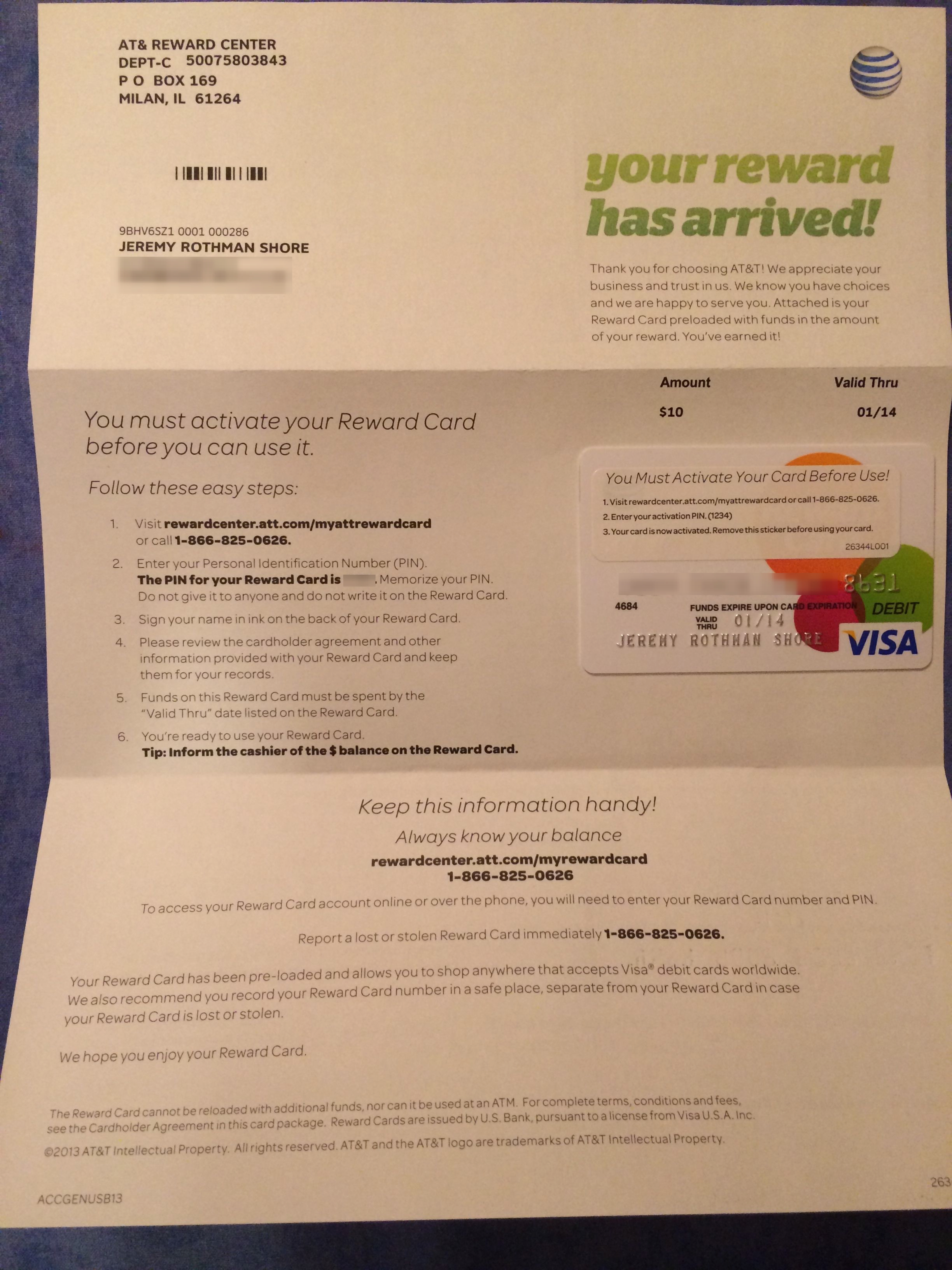
I’m pretty sure some of this hassle is intentional. I recently received a $10 rewards card from AT&T, and I am sure their goal is for me to never spend it. I received it as an incentive to switch to paperless billing. Lots of companies try to get me to switch, but I always refuse to do because the company touts it as good for the environment when really they are just trying to save on postage. In this case, I relented since they were actually willing to share some of the savings with me.

It took two months for them to finally approve the reward (they wanted to make sure I didn’t turn it back off), then I had to register again to process the reward. When it finally arrived a few weeks later, it came in the form of a pre-paid credit card for $10 that expires in just two months. I’m convinced that they hope a non-trivial portion of people who receive the reward will forget it about it or not go through the hassle before the two months are over, in which case they get to keep the money.

A $10 pre-paid credit card that expires in two months is probably designed to expire before you can spend it

A $10 pre-paid credit card that expires in two months is probably designed to expire before you can spend it

Long ago, someone suggested to me a very simple solution to easily spend pre-paid credit cards – convert them to Amazon gift certificates. Specify yourself as the recipient, and you can do it for the exact amount available on the card.  You will now have a credit on your account that you can use to buy anything you want. The money will not expire, so you can do it the moment you receive the card and get around to spending it later. Returns are easy as they ever were.

So, as soon as I received the card, I converted it and then handed it to my three-year-old son as a “pretend” credit card for his toy wallet.

Posted in Uncategorized | Tagged , , , | Leave a comment

Why one NPR show wins my support but the other loses out

I’m a sucker for NPR shows that offer t-shirts in exchange for a donation. I like supporting the podcasts I listen to on a regular basis, and when one of them offers a t-shirt, I immediately pull out my wallet.

I’m not exactly sure why I do this, especially since I don’t wear t-shirts all that often. There is something about the combination of seeing a fun design and supporting a show that I listen to on a regular basis that just appeals to me. I give a monthly donation to my local NPR station (WBUR in Boston), but this doesn’t directly support most of the shows that I am downloading directly from their websites.

As it would happen, today two different shows whose podcasts I subscribe to put out t-shirt-for-donation offers. One immediately had me ready to pull out my wallet, and the other left me cold. It immediately got me thinking about what makes me donate.

Ironically, the one that left unconvinced was Freakonomics Radio, and this was in the context of an entire episode on altruism and what makes people give.  The podcast is produced by the authors of the Freakonomics books, Stephen Dubner and Steven Levitt, and each week they pick a topic at the boundary of economics and normal life and explore “the hidden side”.

I liked the Freakonomics books, and their podcast from WNYC (distributed by APM, not NPR) covers some generally interesting content. In the past, they have never raised money from their listeners, but presumably the general public radio cutbacks have cut into their budget, and they are now seeking listener contributions. They took a very “Freakonomics” approach, bringing in some experts who had done research on what makes people give and discussed what options might work for the show.

Some were tongue in cheek – apparently people give more to attractive women, so they had a model (female) and an actor (male) pitch donations, even though you couldn’t see them. Others were more practical, like raffling off an opportunity to have dinner with the authors. None of this had much effect on me until they mentioned the t-shirt. I’m a sucker for a t-shirt, but somehow I wasn’t convinced. I wasn’t sure why.

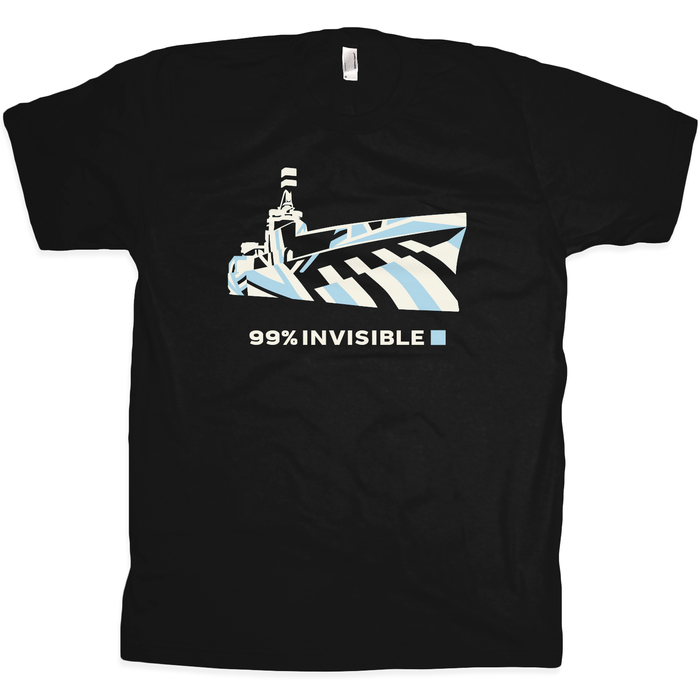
Then, 30 minutes later I got an email from another podcast, 99% Invisible. Last year, I received a t-shirt in return for supporting their Season 3 Kickstarter campaign, which was one of the most successful NPR fundraising efforts ever (actually they are distributed through PRX, not NPR). Today I learned they are raising funds for Season 4, and they are looking to expand to a weekly format.  And of course, they have a new t-shirt. Even better, it’s a t-shirt based on the disruptive camouflage episode that I referenced when writing about how to pick a child’s nighttime lovey (hint: make sure you can see it in the dark). Sign me up!

The 99% Invisible t-shirt references their disruptive camouflage episode

The 99% Invisible t-shirt references their disruptive camouflage episode

Then I caught myself – why did I just listen to 30 minutes of one show about all the reasons I wanted to support them and remain unconvinced, when the other show sent a single email and immediately had me?

I’ve been thinking about it, and I think it comes down to this: 99% Invisible makes me feel like I am part of something amazing, and Freakonomics makes me feel like I’m just giving my money to someone else.

While Freakonomics is interesting, a lot of the show revolves around Dubner and Levitt. They talk to each other, draw anecdotes from their past, and talk to experts. Those guys have made a ton of money on the books and through speaking engagements, and that is referenced occasionally on the show. I know that the podcast is not funded by the books and that there are real salaries for people who work on it and bandwidth costs, but somehow I still feel like Dubner and Levitt are flush with cash. I have trouble getting excited about giving them money.

99% Invisible is much more about the hidden side of design. Each episode focuses on the interesting history of a place or object. While the host Roman Mars does talk about his experience a bit in the show and always ends with a funny comment from his kids, the podcast is still primarily about the content. I love listening to it, and I get excited about seeing it grow and contributing to it.

To hammer the point home, the 99% Invisible t-shirt is drawn from one of the episodes. What’s o the Freakonomics t-shirt? A cartoon picture of Dubner and Levitt. It’s about them.

The Freakonomics Radio show is clearly about the hosts, Dubner and Levitt

The Freakonomics Radio show is clearly about the hosts, Dubner and Levitt

So I just pulled out my credit card and donated $55 to 99% Invisible for my t-shirt. I don’t want to feel like a freeloader, so I also donated a mere $5 to Freakonomics Radio. For all their focus on data and science, I think they still have more to learn.


Posted in Uncategorized | Tagged , | Leave a comment

An easy workaround for getting Gmail Push Notifications while using iPhone’s Mail app

I finally received my iPhone 5S after a three week wait. While I am excited to have my new phone, it has meant giving up on using ActiveSync to get email pushed directly to my phone from my gmail account.

Last year, Google decided to stop supporting Microsoft’s proprietary ActiveSync for mobile devices in favor of their extension to IMAP to enable automatic push. Unfortunately, their extension is not based on any actual standard, and Apple has not implemented it.

Google has allowed existing devices to continue to use ActiveSync, but it has blocked any new activations. This meant that as soon as my wife and I received our new phones, ActiveSync stopped working. We were forced to fall back on IMAP, which meant that mail would be on a fetch schedule of no faster than every 15 minutes.

Talk about a first world problem! I have to wait a whole 15 minutes to get notified of new emails?! The horror…!

But it annoys me nonetheless. There are a few reasons I want my email pushed. One is that sometimes an important email comes in, and I want to know right away and respond quickly. Another is that sometimes there is a conversation going on over email between a few people, andI want to participate in real time. Also, frequently fetching email can hurt battery life, so while it can go as low as 15 minutes, many people recommend 30 or 60 minutes.

One obvious answer is to switch to using Google’s own gmail app for iOS, which supports push notifications. However, I don’t want to do this for a couple of reasons. First off, I don’t really like the interface. Second, I keep track of a couple of legacy email accounts, and I like having the unified inbox on my phone. Third, many apps integrate directly with the built-in mail client on the iPhone, and switching between it and the gmail app is confusing.

Another answer would be to start paying Google $50 a year to turn ActiveSync back on. I use Google Apps to run my own domain, and I am grandfathered in to get it for free. If I were to upgrade to the paid version ($50/user/year), I could get ActiveSync again. While I don’t necessarily object to paying $50 for it, in the future I do plan to activate email addresses for my kids when they are old enough. This would automatically increase my costs to $150, just so that I can be pushing email to my own phone. I’m not ready to sign up for that expense.

Many people have proposed some complicated solutions for maintaining push email. They generally involve forwarding your email to a different service that supports push, like iCloud, and then setting up some alternate return addresses so that the messages still appear to come from gmail. This is more complicated than I wanted to go.

Finally, I hit on a simple solution. By tinkering with the notification settings, I can keep using the Mail app while leveraging Google’s gmail app for push notifications. The key feature for push emails for me is to simply be notified that a new email has been received and the subject line, and this is simple to achieve.

Here’s how it works:

First, I install Google’s gmail app and set it up. To be clear, I have no intentions of actually using this to send and receive emails on my iPhone, but I need it installed on the device for its push notifications. Within the gmail app itself, I set the notifications to “All New Mail” so that Google will send an alert with every message, including mundane items like shipping notifications.

Then, within the iPhone’s “Notification Center”, I make the following configuration options for the gmail app:

  • Set the alert style to “Banners”
  • Turn off the “Badge App Icon”, since I have no intention of actually opening the gmail app and the badges will bug me
  • Turn sounds on
  • Turn “Show in Notification Center” on
  • Set it to include the 10 most recent items
  • Turn on “Show on Lock Screen”

I then throttle back the Fetch schedule for the mail accounts on my iPhone to 30 minutes.

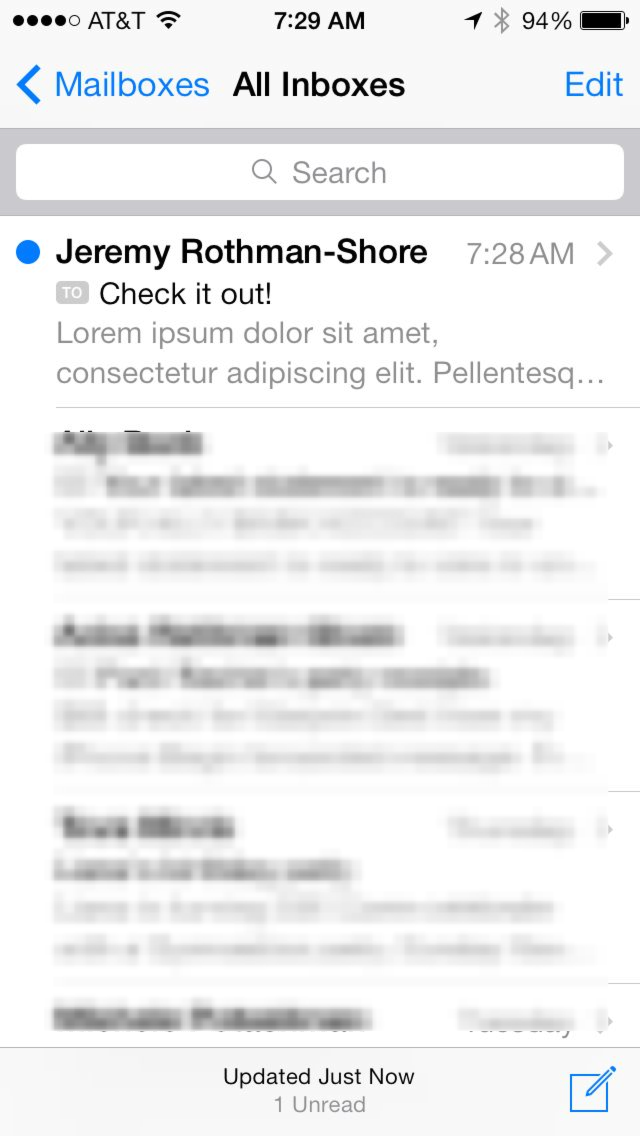
With this setup, I am 90% there. My phone is only fetching email occasionally, but as soon as new message to my primary email account comes in, Google sends a push notification to my phone with the sender, subject line, and the first few lines of the message:

Push notifications come in from the Gmail app

Push notifications come in from the Gmail app

The alert has come from the Gmail app, rather than the built-in Mail app, but this isn’t a big deal.  When I want to actually read the email, I still open up the regular Mail app. Since it is only fetching messages every 30 minutes, it won’t already be in the inbox, but it will immediately perform a fetch and pop right in:

The Mail app fetches new mail as soon as it is opened and grabs the new message

The Mail app fetches new mail as soon as it is opened and grabs the new message

This works well – I still have my unified inbox using the iPhone’s built-in mail app, I’m not paying $50 a year for ActiveSync service, and I have push notifications.

There is one more modification to avoid confusion, however. The built-in Mail app is still fetching email every 30 minutes, and when it grabs new messages that I haven’t read yet, it will show me a new notification. This will be confusing, since I will now be getting double notifications for every message – one immediately when it arrives via the Gmail app, and another 15-30 minutes later when the iPhone’s mail app fetches it.

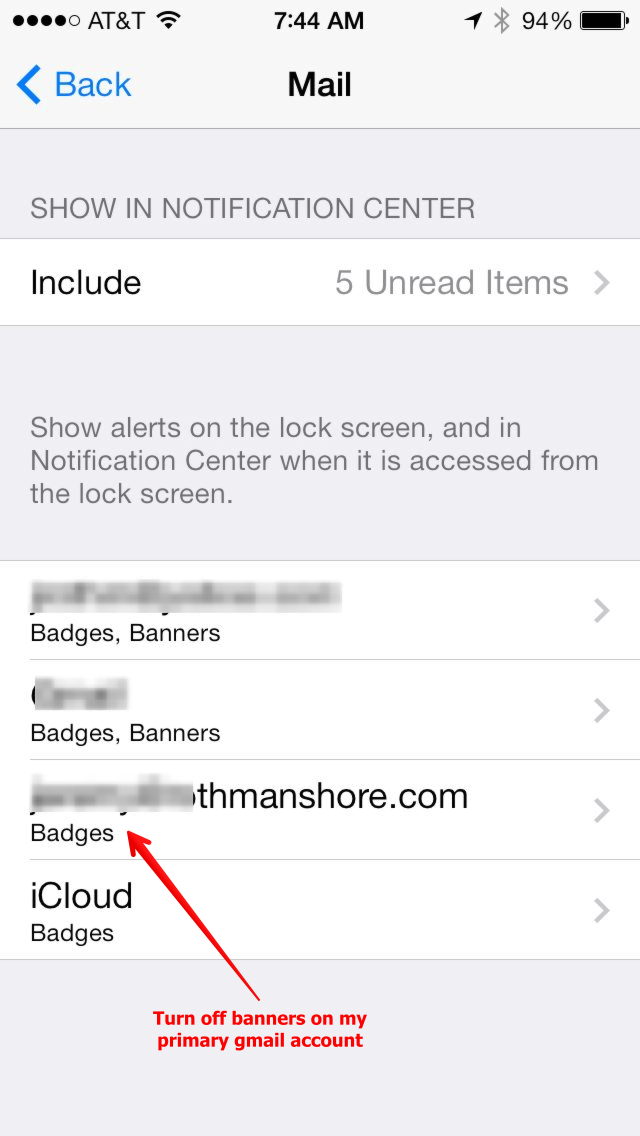
I don’t want to disable notifications for the Mail app altogether, since I do want to get the notified when a message pops in from when of my secondary email boxes. The solution is that iOS actually allows you to set custom Notification Center options for each email account separately:

I turn off notifications on my primary mail account but leave it enabled for the rest

I turn off notifications on my primary mail account but leave it enabled for the rest

For my primary email account within “Notification Center”, I turn off the banners and sounds, but I leave the badge icon on.  I leave the banners on my for my other accounts. This way, when a message pops in for a secondary account on the 30 minute schedule, it will pop up an alert, but messages to my primary account are silent, except for updating the badge number.

This seems to be working perfectly. I have hidden the gmail app off in a folder and continue to just use the Mail app, but I’m notified of messages as they arrive.

It has two minor inconveniences, but I can live with them. The first is that if I choose the “Slide to View” option on the notification in the lock screen, it takes me into the Gmail app. The second is that if I don’t read a message when it arrives, the badge icon on the Mail app won’t update until it does its next 30 minute fetch, but this seems like a reasonable compromise.

Posted in Uncategorized | Tagged , , , , , , | 20 Comments

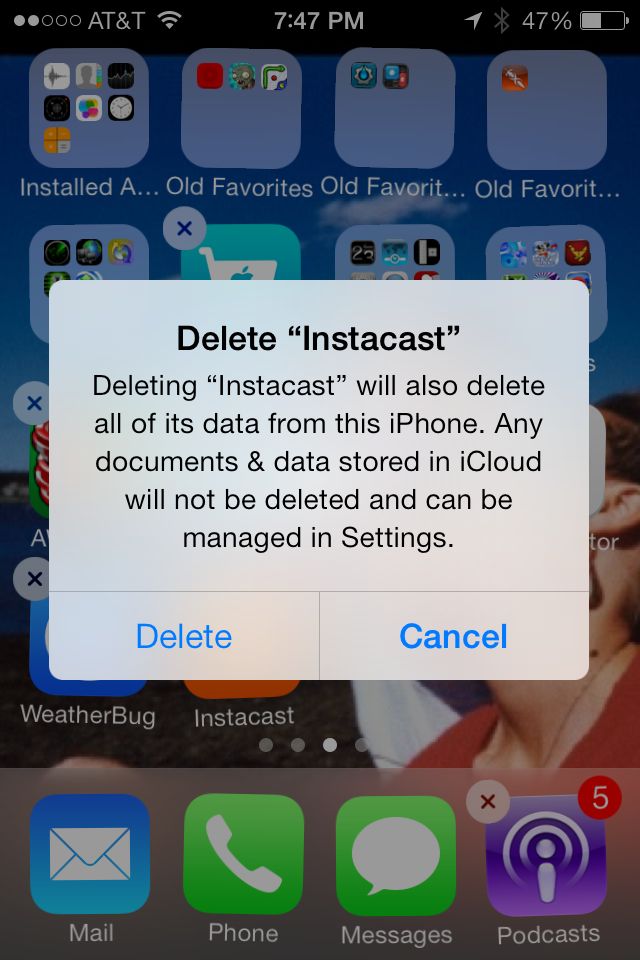
Apple’s own podcast app beats Instacast and Downcast at their own game

After nearly two years of being a loyal Instacast user for managing my podcasts, I just deleted the app. Instacast has “upgraded” itself again and in the process eliminated its most useful features.  And Apple’s once inferior Podcasts app has finally come into its own.

When I first started using Instacast, Apple had no podcast subscription options other than syncing with iTunes or downloading individual episodes by hand.  Instacast was a revelation in that it managed subscriptions directly on the phone, completely eliminating the need to hook my iPhone up to my computer every day.

At first Instacast took some getting used to, but what I most disliked about it soon became my favorite feature. Rather than allowing you to build your own custom playlists, it insisted on managing them for you with “smart playlists” that would automatically update as new episodes were loaded. While you couldn’t change the order of the playlist, you could change the order of the subscriptions themselves, and the smart playlist would order podcasts based on that.

To my surprise, this worked out well, since it could automatically match my own hierarchy of preferred podcasts.  I don’t want to just listen to whatever is oldest or newest.  There are podcasts I want to listen to as soon as they come out, like On The Media for its insightful news analysis. Then there are daily podcasts like NPR Story of the Day or Marketplace Tech Report, which I want to listen to each day as soon as they come out (assuming I’ve finished that week’s episode of On The Media, of course).  Then there are weekly shows I want to listen as time allows (This American Life, Wait Wait Don’t Tell Me), and finally more rarely published shows that I will listen to when my main shows are exhausted (Freakonomics Radio, RadioLab, The Truth).

Instacast allowed me to replicate this automatically, with preferred shows automatically jumping in ahead of less important ones. I could occasionally tweak the order of the subscriptions to fine tune what came next, but in general all I had to do was open the app once a day to download new shows, and Instacast did the rest automatically.

A few months into my using Instacast, Apple finally rolled out their own Podcasts app.  I took a look and quickly recognized it as inferior.  It had no playlist ability at all, and you had limited control over what subscriptions would be downloaded versus streamed. Everyone panned it, and I stuck with Instacast.

Then, last year, Instacast upgraded. The author finally accepted that users wanted to create their own playlists, so he changed the interface around to support it. This was good, in theory, but you had to select episodes in order of how recently they were added, rather than by subscription. They were all jumbled together, and I couldn’t sort it out by my preferred listening hierarchy.  With great difficulty, I found the old “sort by podcast subscription order” option inside a hidden menu (you had to hold your finger down on the smart playlist to pull up a secret screen), so I stuck with Instacast.

Now, with iOS 7, Instacast has “upgraded” again, with disastrous results. I quickly discovered that when one podcast finished playing the next one no longer started automatically. With great difficulty, I figured out that the author had completely disabled automatic playback. If you wanted to listen to a series of shows, you had to add podcasts individually to the “Play Next” list. What is the point of the smart playlist if you have to do this manually? And even worse, they *still* wouldn’t play back.  All I wanted to get in the car, hit the go button, and have my podcasts play back in my preferred order – why was this so hard?

I couldn’t figure out what I was doing wrong.  I was sure there was some way to fix it, but it wasn’t intuitive. At this point, I was sick of Instacast’s confusing interface decisions and decided to explore other podcasting apps.

First I looked at Downcast, paying $2.99 for the privilege of trying it out, but I quickly found it had no real smart playlist option either.  It had the ability to manually set a “priority” for a podcast between 1 and 5, but this was cumbersome to set up and did not have enough range for me to sort list of 15-20 subscriptions.

Then, I looked at Apple’s podcast app again, and found that it had come a long way. They had added playlists, included smart “stations” like one for unplayed episodes.  This playlist had an easy to access settings menu, which included a sort order of “My Podcasts”, which replicated the old Instacast sorting functionality I missed so much.

Clear, easy to manage smart playlist settings

Clear, easy to manage smart playlist settings

They also had fixed options to control the playback order of individual subscriptions (newest versus oldest) and which episodes to downloaded. And they had a whole slew of features that I wished Instacast had, like the ability to maintain podcasts in the list without having them automatically download new episodes.  This way, if I am going on a long trip and want some extra podcasts to listen to, I can download them without having to actually subscribe.

Apple had looked at the competition and copied the best features into their own app. Meanwhile, Instacast had focused on obscure use cases from “power users” who want to do fancy things like sync podcasts across devices. They left “normal but heavy users” like me behind by getting rid of the features that made it simple and automatic.

So long, Instacast

So long, Instacast

So long, Instacast!  And thanks, Apple!

Posted in Uncategorized | Tagged , , , , | 3 Comments

Finally, my kids’ iPod has wireless connectivity

I just upgraded my kids’ iPod again so that it could obtain a feature I never thought I would consider critical: wireless connectivity. My kids are only five and three, and even I must admit that this does seem a little premature.

For many years, we had an refurbished 2nd generation iPod Nano in their room so that we could play music at bedtime.  This had the old touch-sensitive dial controls, and my wife absolutely hated it. There was something about the dial interface that just didn’t make sense to her. Normally, I do bedtime, so she almost never needed to use it. However, on rare occasions when we were having a bad night, she would find herself getting quite frustrated when she tried to put music on to coax a kid back into his or her own bed and couldn’t work the controls.

About a year ago, I decided to bite the bullet and upgraded to a 5th generation iPod Nano I found on eBay. On this version, they had eliminated the dial control and replaced it with a more intuitive touch-screen interface similar to the iPhone’s. This made my wife much happier.

We started to listening to music more on it. Partly this was because the kids were older and partly because the iPod was easier to use. If the kids were interested in a song I had introduced them to that was already on the iPod (like American Pie), I could just quickly create a playlist on the fly. We used it more and more.

Where things became inconvenient was when they wanted to listen to something completely new that wasn’t already in the library. For example, when they became interested in the Cup song from Pitch Perfect, they wanted to listen to it at bed time. To get it on to their iPod, I needed to purchase the song on my phone, then boot up the three-year-old laptop that holds my music library.  I would then need to create a playlist with the song, connect the iPod to it, sync the library, and then put the iPod back in their room.

It wasn’t a huge deal, but it took 10-15 minutes, and it happened right as I am trying to put the kids to bed.  It was not the kind of disruption I had i mind.  Really, what I wanted was the same convenience I had on my phone – download the song and play it.

As luck would have it, we have just come full circle with the iPhone upgrade cycle.  Two years ago, when we upgraded our iPhone 3GSs to iPhone 4Ss, we converted the old phones into iPod Touches and gave them my nieces.  Now, we are due for upgrades again. While we won’t be receiving our iPhone 5Ss for a few weeks, my nieces will once again be upgrading with us, and there is already an iPhone 3GS up for grabs.

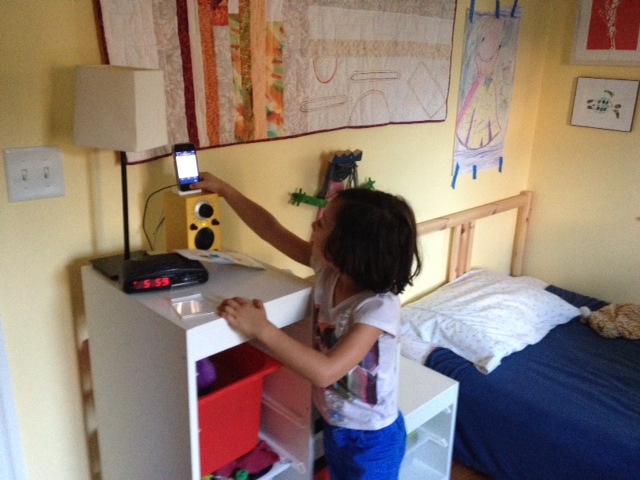
It’s too old now to run the latest apps or operating systems, but it still plays music just fine, and it comes with wireless access.  Tonight I wiped it, loaded the full music library, and installed it in their room. I can now download music straight to it when I am in a rush, or I can manage the music library using wireless syncing with iTunes.

An old iPhone 3GS in the kids room still works just fine as an iPod with wireless access

An old iPhone 3GS in the kids room still works just fine as an iPod with wireless access

Much better!

Posted in Uncategorized | Tagged , , , , | Leave a comment

The great thing about a hyphenated name is that you are easy to find on Google

My wife and I just celebrated our 15th anniversary a few days ago. When we got married, I changed my name from “Jeremy Rothman” to “Jeremy Rothman-Shore.” I had never specifically wanted a hyphenated name, but it was important to me that my wife and I have the same surname. She didn’t want to give up “Shore,” so if I wanted us to match, we would either both have to hyphenate or I would have to be the one to change my name.

I did think about becoming “Jeremy Shore,” but in the end I decided that I just couldn’t quite bring myself to give up my own last name either. “Rothman-Shore” is not bad as hyphenated names go – just three syllables – so we went with it.

I didn’t realize it at the time, but hyphenating my name has had a huge unexpected benefit.  I am quite confident that I am the only “Jeremy Rothman-Shore” in the whole world. And this is quite useful in the Internet age.

As social media has become popular, there has been a land grab for being the first one to claim a popular user identifier. Twitter handles, LinkedIn profiles, Facebook pages, domain names all uniquely identify an individual person, and when you have several people with the same name, confusion arises. People with common names end up having to use odd tweaks to avoid collisions, such as using their middle initial or adding a number (e.g. josephsmith183@gmail.com). And if you are the early adopter who gets the clean version (e.g. josephsmith@gmail.com), you then have to contend with all the mis-delivered messages and confusion from people trying to contact the other people who share your name.

I’ve been lucky enough to never have to deal with this. When I wanted to register “rothmanshore.com”, it was available. My twitter handle (@jrothmanshore) was there for the taking. I never have to worry about joining a company and having an email address conflict.

And today, I had another nice benefit. I received a message on my blog that a nice person in Cupertino, CA has my t-shirt and offered to mail it to me.

I didn’t leave my t-shirt in California.  Rather, I’m a huge NPR listener, and I am a sucker for podcasts that raise my money by offering t-shirts. I love my 99% Invisible shirt, and I have been waiting years to get my hands on the long-awaited Planet Money t-shirt. So, when another of my favorite podcasts, The Truth, offered t-shirts as part of their Season 2 fundraiser, I couldn’t resist and ordered one.  It was due to arrive very soon.

Apparently, there was some sort of shipping mistake. My address was confused with someone else’s, and a person in Cupertino received two – one with my name on the label and one with his. The Truth is a small operation run by a small, dedicated group, so I don’t have any hard feelings that they made a mistake like this.

And here is the benefit of the hyphenated name – the person who received my shirt googled me, and I was the only Jeremy Rothman-Shore who popped up. I don’t exactly keep a low profile online, so it was pretty easy for him to send me a message through my blog offering to mail it to me.

Ah, the benefits of uniqueness!

I’m not saying that having a hyphenated name isn’t without its inconveniences. My name sometimes has trouble fitting on credit cards and business cards. Airlines can’t seem to handle the idea of a hyphen in a name, so I have to fly as “Jeremy RothmanShore.” And customer service people often decide to shorten it and simply refer to me as “Mr. Shore.”

But it got me my t-shirt.

Posted in Uncategorized | Tagged , , , , , | 1 Comment

What kids can learn from the song American Pie

For reasons I can’t quite recall, I introduced my kids to the Don McLean song “American Pie” last week. My three-year-old son Rafael will start singing it randomly, although his lyrics have been creatively interpreted.

Instead of the original “…and good old boys were drinking whisky and rye, singing ‘This ‘ll be the day that I die…This ‘ll be the day that I die,” Rafael’s version goes:

Little boys, whisky and rye, singing this will be the day that I’m done…This will be the day that I’m done.

At this point, my five-year-old daughter Ayelet will chime in and say, “No Rafael! Die! It goes, ‘this will be the day that I die’!”

I think Rafael’s version is pretty cute, so I quietly try to convince her not to correct him. But there is an interesting subtext – Ayelet seems quite familiar with the concept of dying. We’ve never gone out our way to explicitly tell her about death, but we haven’t tried to hide it from her either. When the topic has come up, we try to simply answer her specific question and move on.

When she has asked us about when we will die, or her grandparents will die, we are always careful to explain that we won’t die until we are old and sick.  The idea that people sometimes die in more tragic, unforeseen circumstances isn’t something that we have introduced.  But again, we haven’t hidden it either. There have been passing references, such as around the importance of buckling our seatbelts and what could happen if we don’t, but nothing specific.

Ayelet doesn’t understand the meaning of the lyrics of American Pie, but she has clearly managed to pick up some of the undertones. The first day that my son was really in to it, he asked to listen to it while they went to sleep. A few minutes later, Ayelet came out of their room saying the song was making her sad and could we please turn it off!

I figured that would be it for the song, but the next day Ayelet asked to hear it again. Then a day or two later, while she was singing it to herself, she turned me and said, “Is that a real song?”

Ayelet has been quite interested lately about whether stories are “real” or “made up.” She will often point out that a story isn’t real because it features a talking animal, and animals can’t talk. Most of the stories kids read are made up, so perhaps the “real” ones hold particular interest.

I thought about her question for a minute, and then decided to stick with our general policy of always answering the question. “Yes, it’s real,” I said. “It’s about three musicians who died in a plane crash.”

I then recounted the story of how Buddy Holly, Ritchie Valens, and The Big Bopper were killed in a plane crash in the 1950s. She had a lot of questions. Why did the plane crash? Because of a snow storm. Why were they on the plane? They were cold and didn’t want to ride the bus. Why didn’t they want to ride the bus? Because the heater was broken.  And so on.

I did try to emphasize particular points that I wanted to make sure didn’t scare her in the wrong way. That the plane was a very small plane, not like the big jets we fly on today. That there was a snow storm, and this was a long time ago, before even I was born, and big planes today can safely fly in storms like that.

I then tried to explain more about what some of the verses meant. We still receive a real printed newspaper on the weekends, so we talked about “February made me shiver, with each paper I’d deliver. Bad news on the doorstep…” and how it was about him delivering the newspapers with the story of the plane crash.

So far, she hasn’t become scared or frightened.  She likes singing the song, and she likes playing with the toy lego airplane we built this afternoon. As kids do, she’s just taking it in.

So far, we are very lucky. Death remains a very remote concept for Ayelet, so she is able to approach it at her own pace.

It’s not a kids song, but I’m glad she’s learning it.

Posted in Uncategorized | Tagged , , | 1 Comment

Answered: What is this Word non-printable character that looks like a tilde (~)?

We came across a strange bug today when exporting some data from a database into Excel. When we viewed the text through our web interface, it showed as the equivalent of “The quick brown fox jumped over the lazy dog.”  However, when we exported the data to excel, it showed up as “The quick brown foxÂjumped over the lazy dog.”

What was that funny character?  It wasn’t visible in the text field in our web interface.

We traced the source of the data back to that most dreaded text formatting tool – Microsoft Word.  Word always causes me headaches with its constant need to fix everything, turning my normal quotes (“) into curly quotes (“”) or hypens (-) into m-dashes (—), so I immediately suspected it was the source of the problem.

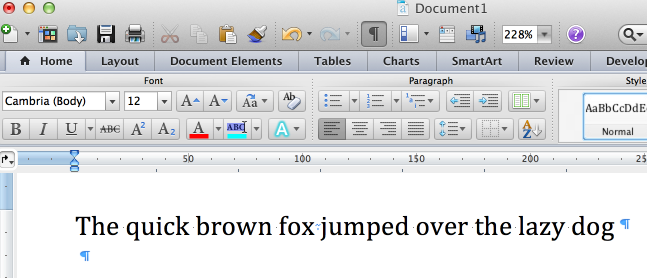
I turned on “Show all printing characters”, and sure enough, there was a strange mark at that spot:

Show all nonprinting characters shows spaces, tabs, carriage returns, etc.

Show all nonprinting characters shows spaces, tabs, carriage returns, etc.

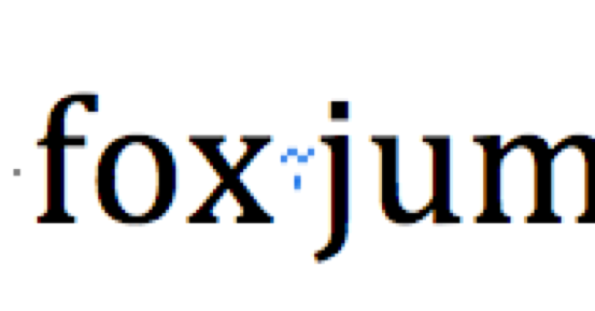
But what was it?  I am used to the small dot to indicate a space, but this looked more like a tilde character:

A space is normally represented as just a dot, but this is something different

A space is normally represented as just a dot, but this is something different

I had never seen it before.  Without the non-printing characters on the screen, it looked just like a space.  But clearly Word understood it to be something different.

I checked a variety of lists of non-printable characters Word uses, but it never seemed to appear. I then googled the “” and came across a Stack Overflow discussion amongst some engineers about what it was.

It turns out that is a non-breaking space.  Web developers are very familiar with it as the “ ” string, which is used to force the web browser to render a space. In HTML, all spaces are considering non-essential, so if you have five in a row, the browser will just render a single space.  You use a non-breaking space when you want several spaces to really be rendered.

Microsoft Word supports them, but for their original purpose – non-breaking spaces. The idea of a non-breaking space is that it separates two words but does not allow the text layout engine to choose it as a place for a line break.  For example, if you wanted to make sure that “New York” was treated as a single phrase and did not wrap text in the middle of it (with one line ending on “New” and the next one starting on “York”), you could put a non-breaking space in there to stop it.

It seems that somehow a non-breaking space was introduced into our document.  It doesn’t appear to have been Word making changes automatically like it does with quotation marks , since it is only at this particular place.  How did they get in there?

Then, it dawned on me.  Perhaps the problem was before Word.  Where had I seen non-breaking spaces before? They are very common in HTML. As an experiment, I created a simple web page that had a single line of text with an “ ” at one spot instead of a space.  I then opened it in a web browser, copied the text, and pasted it into Word.  I then turned on “Show all nonprinting characters”, and there was the squiggle.  The non-breaking space had been copied into Word.

So, this bad character had been passed through generations of systems from an HTML page to Word to our web application to our database to the generated report to excel. It was like a genetic defect, passed down hidden through generations until it finally manifested.

So, the moral of the story: be very careful when copying from HTML pages and pasting them into Word.

Posted in Uncategorized | Tagged , , , , , | 9 Comments